Organizing photos is more than just organizing files. It's a crucial step to ensuring the long-term survival of precious memories that could easily get lost in digital clutter.
When it wasn't possible to take photos with a smartphone at any time, every shot carried weight, not just because of the cost but also because of the meaning invested in it. People tried to capture truly important moments: a child's first steps, a wedding, significant events.
Today, the situation has changed. We easily take dozens of photos a day, often without considering their value. Galleries are filled with photos of meters, price tags, and other household trifles. We take more photos, but the significance of each one has noticeably diminished.
This quickly fills up the memory on your computer or phone, and leads to another problem: finding the photo you need when you need it becomes impossible. And there's simply no way to solve this. To restore order and avoid a return to chaos, you need a well-thought-out and consistent action plan.
As someone who has been working with photos for a long time and has tried various approaches and tools, I want to share the best way to organize photos.
File organization architecture
The advent of photo managers has made life much easier. They let you quickly sort through your entire photo archive and find the photo you need. But these are just programs. History is full of examples of seemingly good tools, even those developed by large corporations, shutting down or raising the license price.
Excellent examples include Google's Picasa and Adobe's Lightroom. The former was discontinued in 2015. Lightroom was initially available with a paid perpetual license, but since version 6, it has been available only through a subscription model, which has automatically increased the cost of ownership.
Therefore, to avoid a situation where a program you've relied on for years suddenly disappears, you should always start organizing your photos by creating a chronological folder hierarchy. This will significantly reduce your dependence on specific software.
The most reliable and scalable folder hierarchy is Year > Month > Event (optional). Using a four-digit year at the beginning ensures correct sorting on any operating system. Month subfolders should be named with a leading zero, for example, 01_January. This will prevent situations where April appears before January.
Methodology for selecting photographs
Simply organizing photos into a folder hierarchy will make navigation and searching easier. However, it won't solve the problem of duplicates, which can take up to 50% of a photo archive's total size, with another 25% coming from technical errors, screenshots, and stray shots. If left unchecked, over time, this digital junk will take up most of your available space. Purchasing additional storage is fraught with financial and technical difficulties.
Therefore, to avoid turning your photo archive into a dumpster, you should develop a habit of periodically culling photos. This especially applies to shots with obvious technical flaws. Photos with out-of-focus areas on eyes, micro-blur due to overly long exposures, or irreparable overexposure should be consigned to the trash.
Next comes a content analysis, where the focus shifts to the plot and dynamics. In portrait photography, photos with awkward facial expressions or closed eyes are discarded. In lifestyle photography, only shots that best convey the atmosphere of the scene are retained. It's important to learn to notice unnecessary details: a branch awkwardly crossing a face, or a random passerby in the background.
At the final stage, the best shots are selected from the good ones. We look at the rhythm of the composition, the color balance, and, most importantly, how the shot stands out from the rest of the series. The result is a kind of "portfolio," where each photograph adds to the story rather than repeats what's already been seen.
Criteria for choosing a photo organization tool
Manually creating a folder hierarchy and then culling photos is a labor-intensive process that requires attention to detail. Confusion over dates adds to the complexity. It often happens that the date displayed in the file manager doesn't match the actual shooting date recorded in the photo's metadata. Resolving this issue and subsequently organizing the photo archive requires specialized tools.
The difficulty is that it's unclear which of the available tools is suitable. Professional photographers recommend Adobe Lightroom, but in my opinion, the functionality of such apps is excessive for everyday home use. A tool that meets the following criteria is needed:
Working with metadata. The program should not only read but also edit the basic metadata that directly impacts the process of sorting and organizing photos. This primarily concerns the date, title, description, tags, and keywords.
Automatic sorting. Automatically sorting photos into folders from a specified source is a must. It's ideal if you can set specific parameters: by date, camera, geolocation, and others. It's also important to have the ability to batch rename files using a template.
Finding duplicates. Duplicates are files with the same name or content. The program should recognize both variants. It will be an advantage if the tool can detect even slightly modified copies, for example, in a different resolution or with minimal editing.
Speed and stability. Photo management requires processing large amounts of data. The tool must handle thousands of files reliably, display previews quickly, and not crash when running batch operations.
Independence from the cloud and subscriptions. Photos are more than just images, they're precious memories. Therefore, it's important that access to your photo archive isn't dependent on a subscription or internet connection. Ideally, the program should run entirely locally.
Facial recognition and geolocation. Facial recognition and location visualization are essential features that not only speed up the photo search process but also make the photo archive more interactive.
The interface deserves special mention. It should be uncluttered with buttons, menus, and switches. The program's control logic is designed to maximize time savings, not to create new complications.
From chaos to systematization of photo archives with Tonfotos
Unfortunately, there aren't many solutions that meet the criteria of a home photo management program, especially if you discount those that are subscription-only or require mandatory registration. Essentially, there are only two: Tonfotos and DigiKam. The former is distributed as shareware, with the free version having no functional limitations other than the number of person cards available. DigiKam, while open source and free to use, has an interface that resembles an airplane control panel.
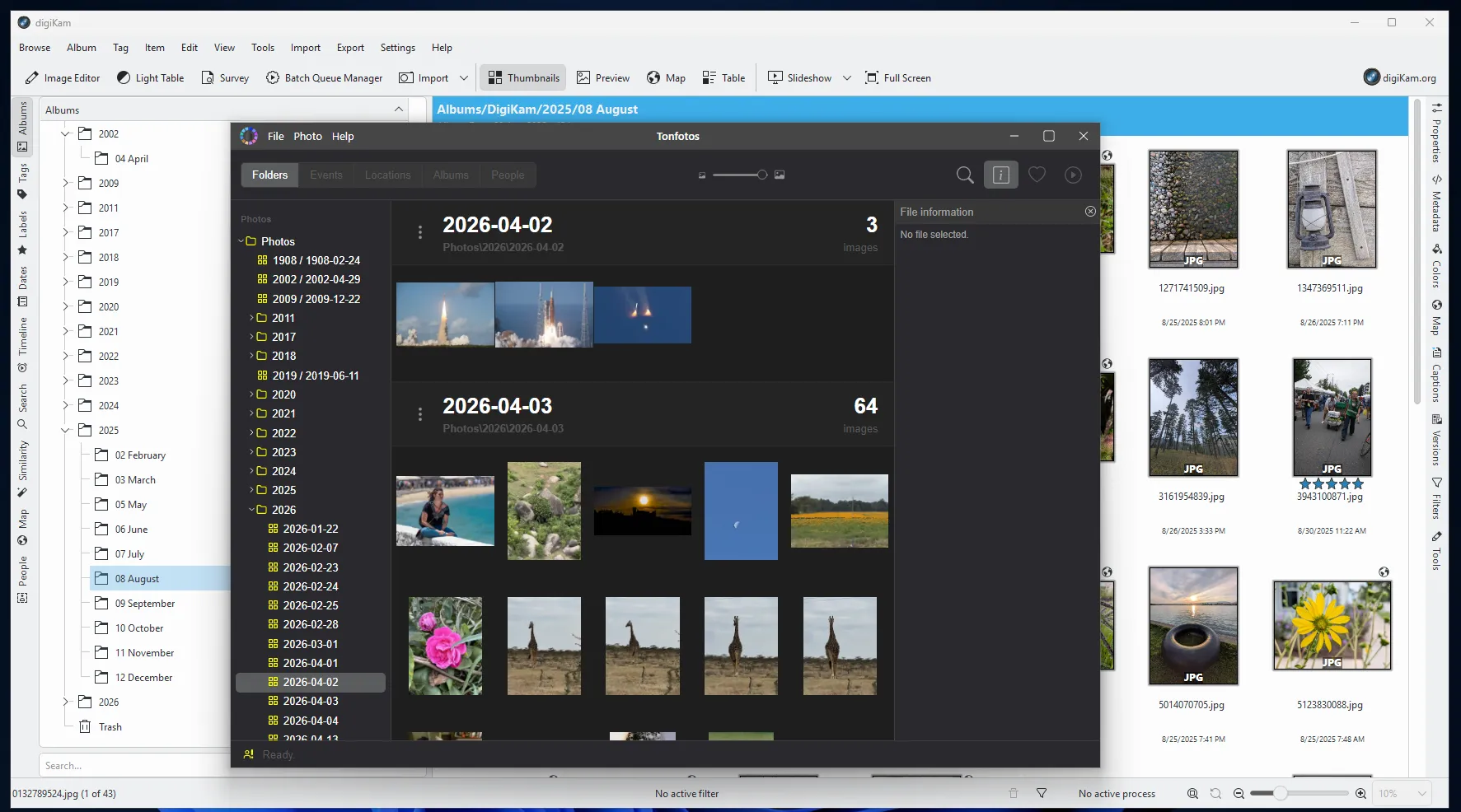
I have tested both apps and Tonfotos is indeed more convenient for home use.
Let's look at the specific steps for organizing photos using this program.
Collection and consolidation
It's impossible to organize photos when some are located on different devices and others are in cloud storage. Therefore, the first step is physically gathering all assets. This includes copying photos from cloud services (using tools like Google Takeout) and extracting them from old phones, external drives, and memory cards. All files are placed in a single "incoming" folder, which will become the foundation of your photo archive.
To implement Tonfotos's functionality, after installing the program, you must delete all recommended sync directories on your computer. Instead, create a new empty folder to serve as your primary library and add it to the app.
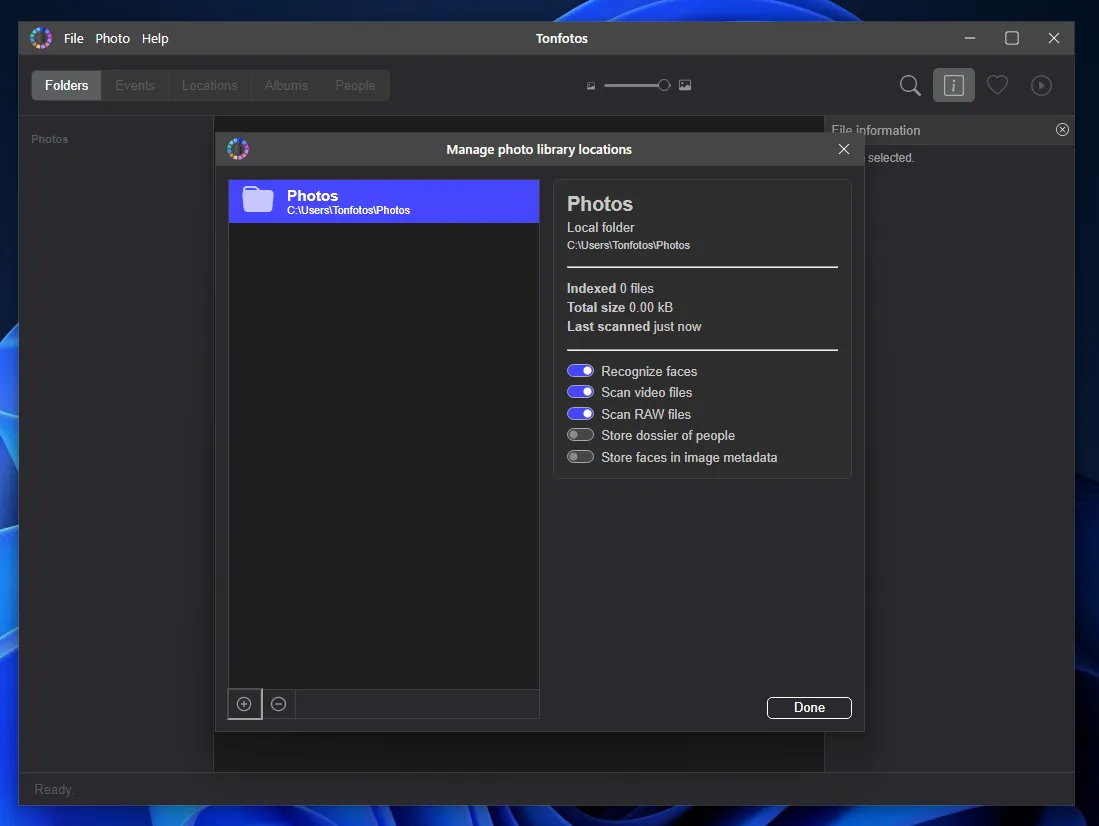
Now you need to import the photos that were downloaded from Google Photos. There's detailed information on the website.How to export photos using Google Takeout.
Use the built-in import wizard, which will not only copy photos downloaded from the cloud to your main library, but also organize them into folders according to shooting date.
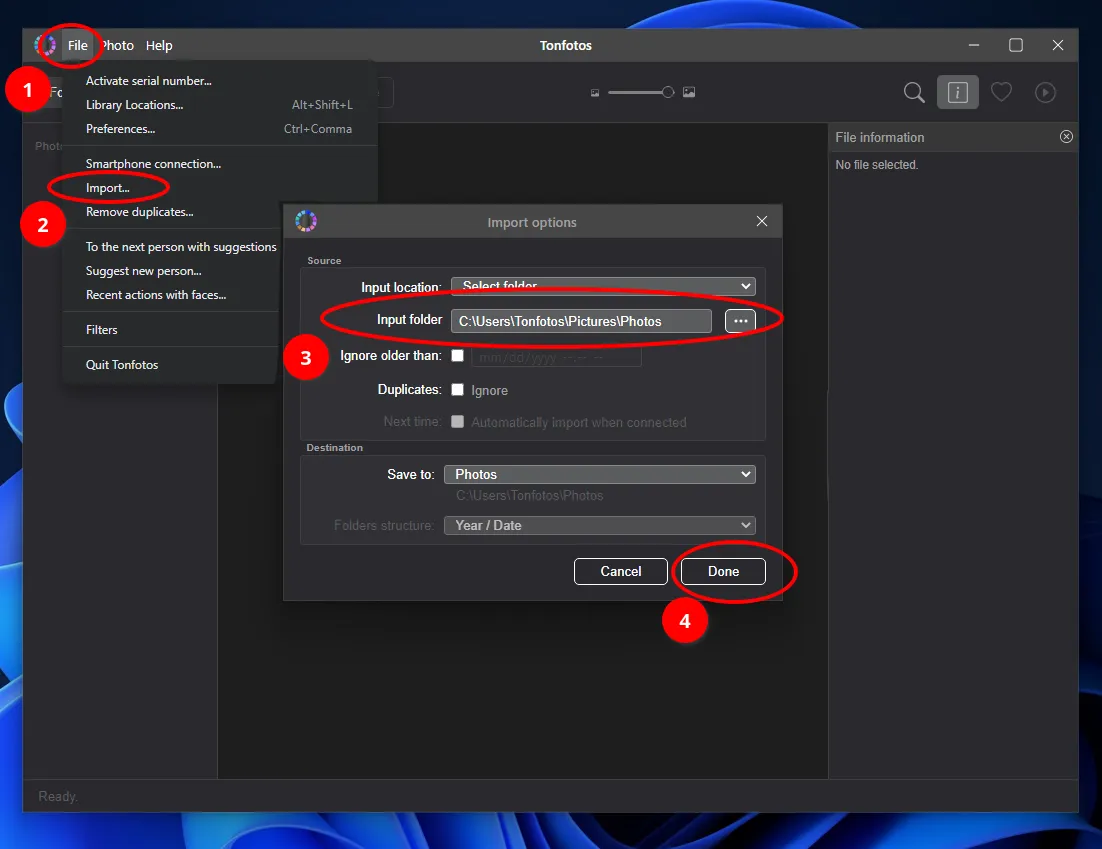
As a result, you don't need to look through each photo's metadata to decide which date folder to place it in. Tonfotos does this automatically.
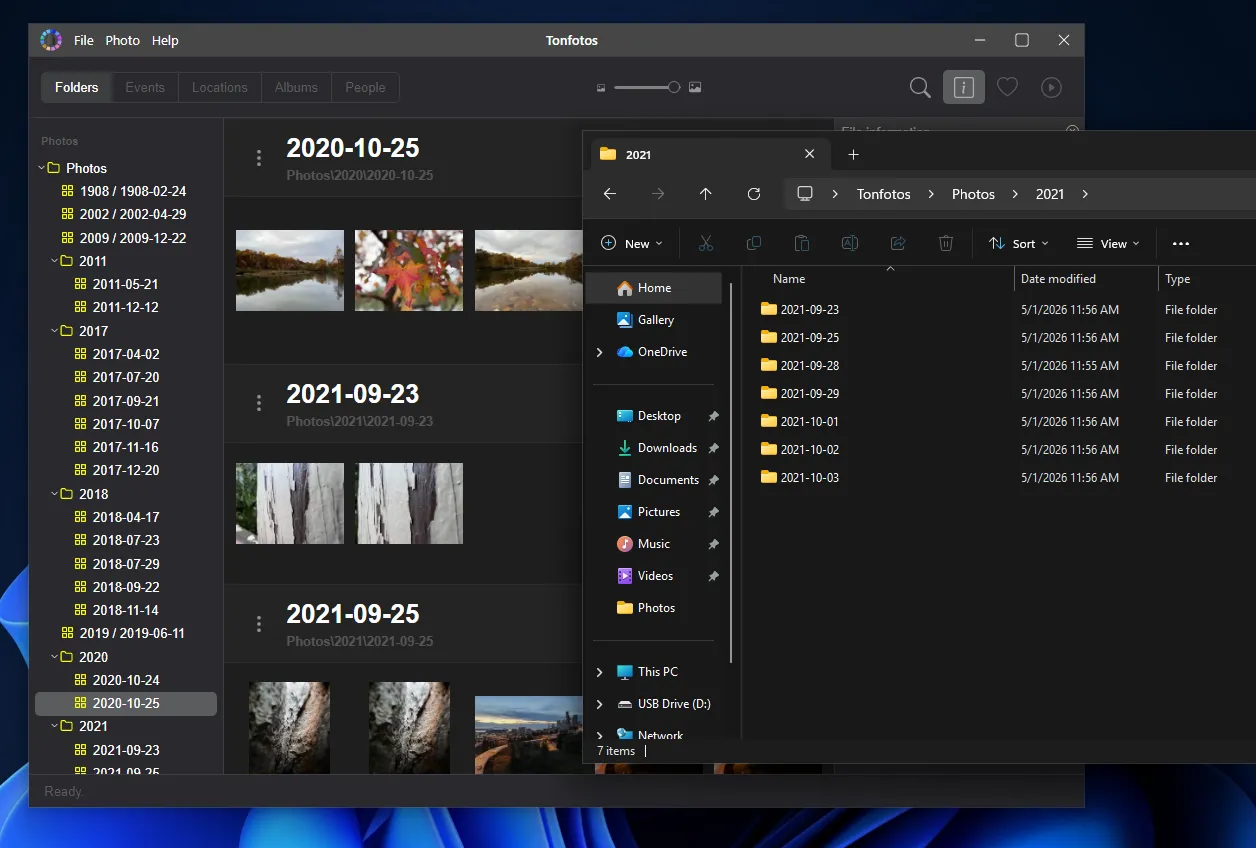
In this way, you can import photos from other folders on your computer.
Keep in mind that Tonfotos copies files, not moves them, so you can delete the originals once you're finished, but proceed with extreme caution! It's best to delete them first, then empty them once you're sure they're all in order.
If some of your photos are on your phone or camera, simply connect them to your computer after opening Tonfotos. The app will automatically detect your device, and all you need to do is agree to import. In the copy wizard, you can choose to skip duplicates and customize the behavior for subsequent device connections; you can also copy photos taken after a specific date.
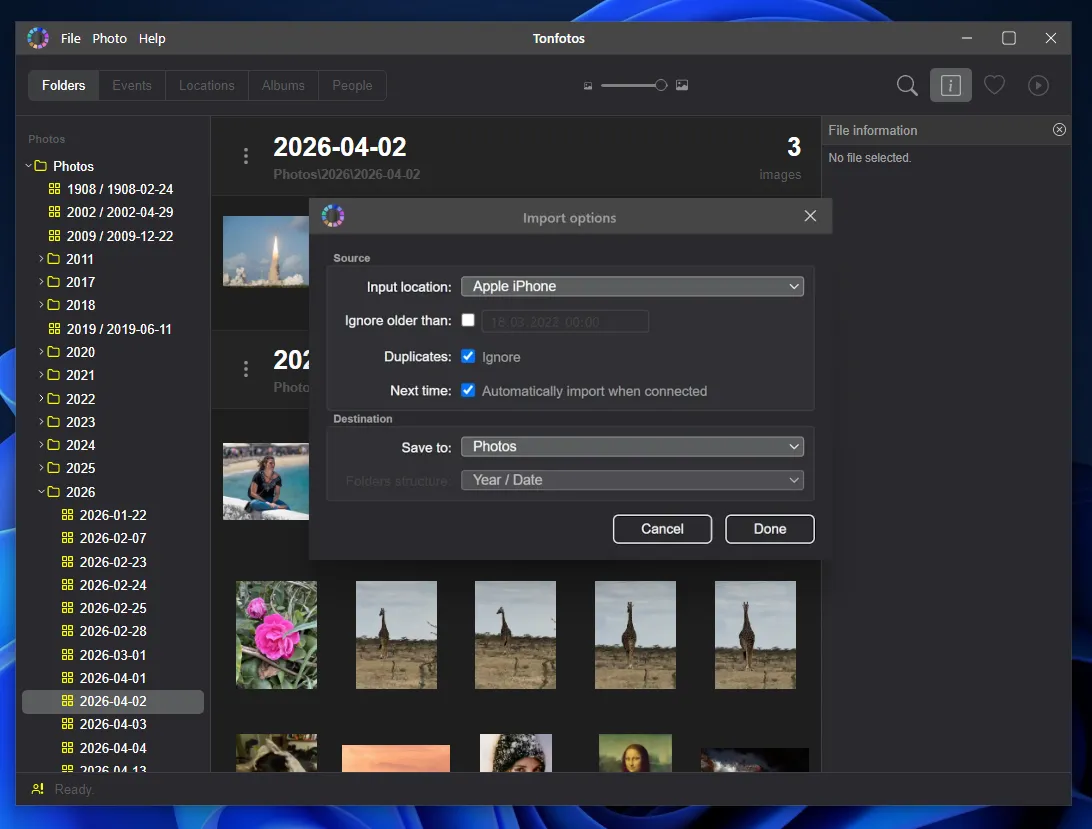
To avoid connecting your smartphone every time you copy photos to the shared library, you can install a free proprietary mobile app for synchronization –TonfotosSync. Open "Smartphone connection" and scan the QR code on your computer screen. The app will automatically detect which photos haven't yet synced and prompt you to import them.

After collecting and consolidating your photos, you'll have a basic organized photo archive. However, this isn't enough to quickly find photos, unless you remember every single event in your life and the lives of your loved ones down to the day.
Removing duplicates
Since the previous step involved collecting all photos in one place for later organization, there is a high chance that duplicates were copied as well. Tonfotos has a dedicated tool that helps remove them and free up disk space.
Before launching it, make sure the program has finished scanning your library. The lower-left corner of the window should say “Ready”; otherwise, information about copies may be incomplete. To start the search, go to the File menu and choose Remove duplicates. The program will calculate statistics, show the total number of detected copies and their size, and clearly display exactly which folders on your computer or cloud storage contain these duplicates. This allows you to quickly decide from which location, for example a temporary import folder, you can safely delete copies while keeping the originals in the main archive.
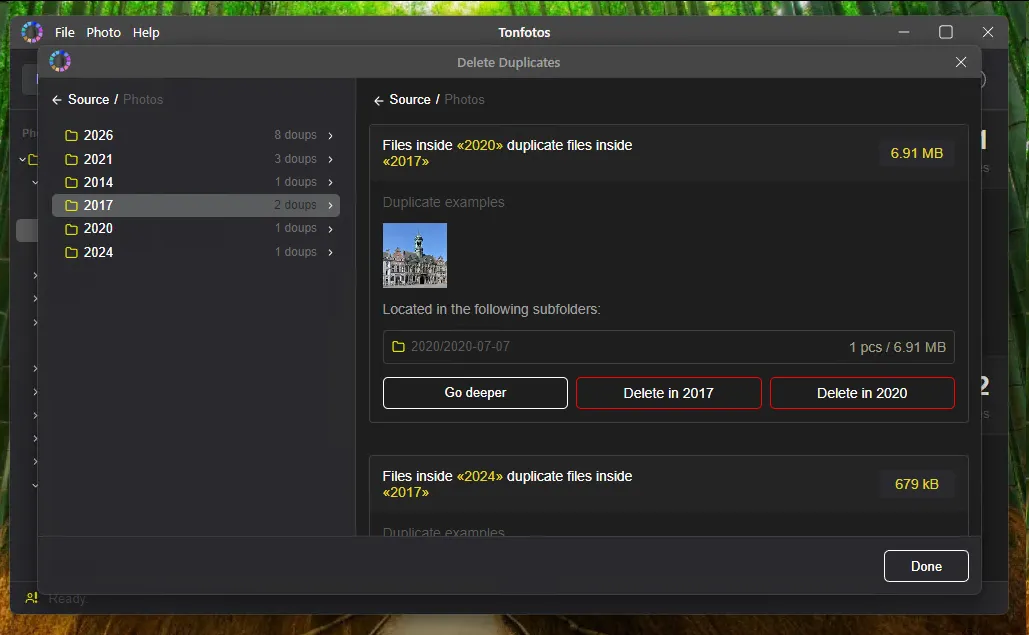
Please note how the algorithm works. It searches only for exact file copies, and file names do not matter. Even if one of the copies has been renamed, Tonfotos will still recognize it as a duplicate if its contents have not changed.
However, if even the smallest changes have been made to the file, the program will treat it as a unique original and will not offer it for automatic deletion.
The developers did this intentionally to completely eliminate the risk of accidentally deleting valuable edited photos or the results of your work on organizing the archive.
Tagging and facial recognition
After creating the folder structure and removing unnecessary images, the next step is to transform the photo collection into a "living" archive. This involves tagging and face recognition. These tools allow you to search for photos not by date, but by meaning.
Tags are keywords you use to describe a photo's contents. Unlike folders, where a single file can only be stored in a specific location, tags act as cross-references. A single photo can be tagged "Vacation," "Family," "Sea," and "2023" simultaneously. Tags make searching more flexible: just enter a single word, and you'll immediately get a selection of relevant photos, even if they're in different folders and taken at different times.
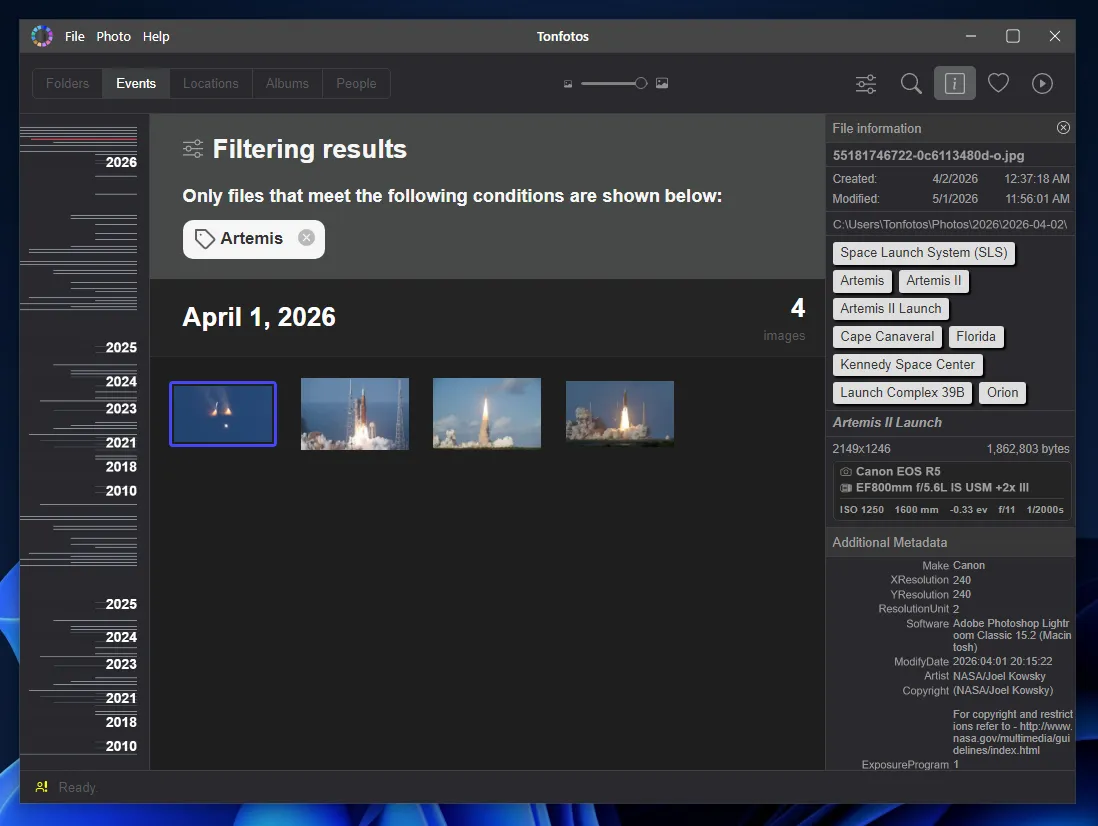
It's important to develop a consistent approach to tagging. Before adding keywords, answer four questions about your photo:
Who is depicted on it (names, brands)?
Where was the photo taken (location, city)?
What is happening in the frame (event, action)?
What is the mood or technical style of the photo (macro, minimalism, b/w)?
This approach ensures that you cover all the key aspects of the search without cluttering the file with unnecessary information.
Regarding facial recognition, Tonfotos automatically analyzes photographs, highlighting people in them.
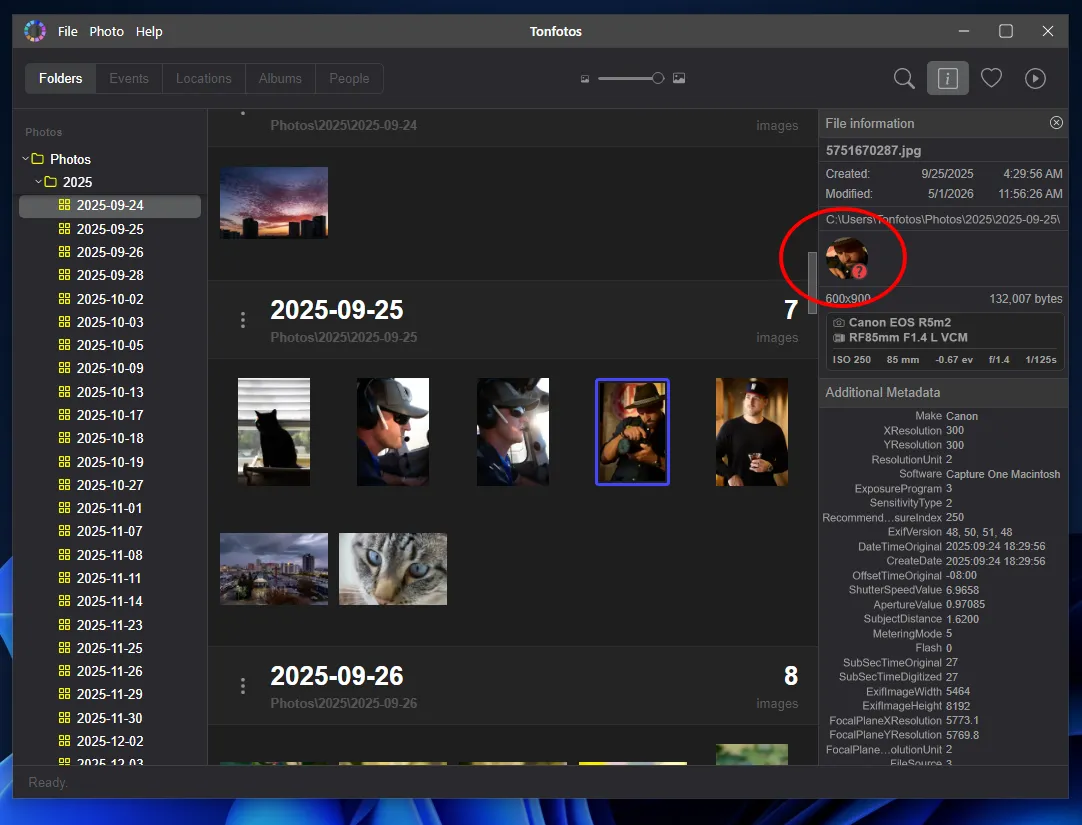
You need to enter a name once to create a card where all the photos of that person will be collected.
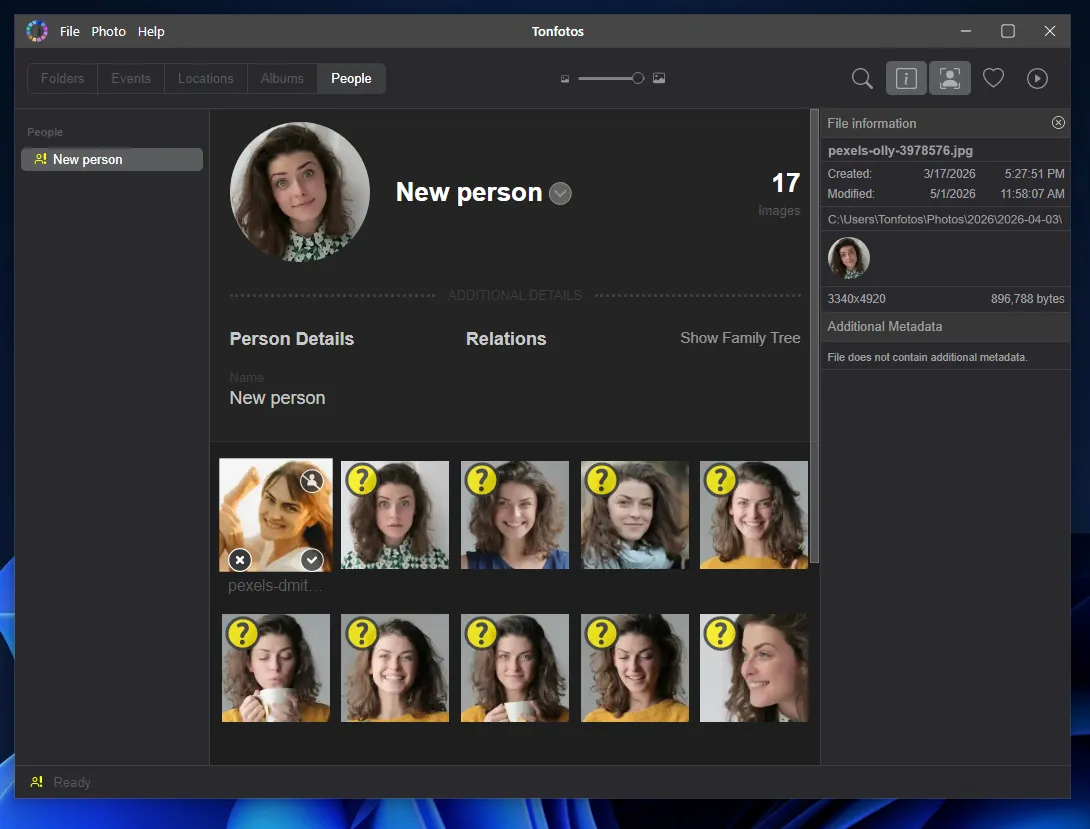
It's worth noting that the card can include additional information about a person, such as date of birth/death, education, address, and maiden name.
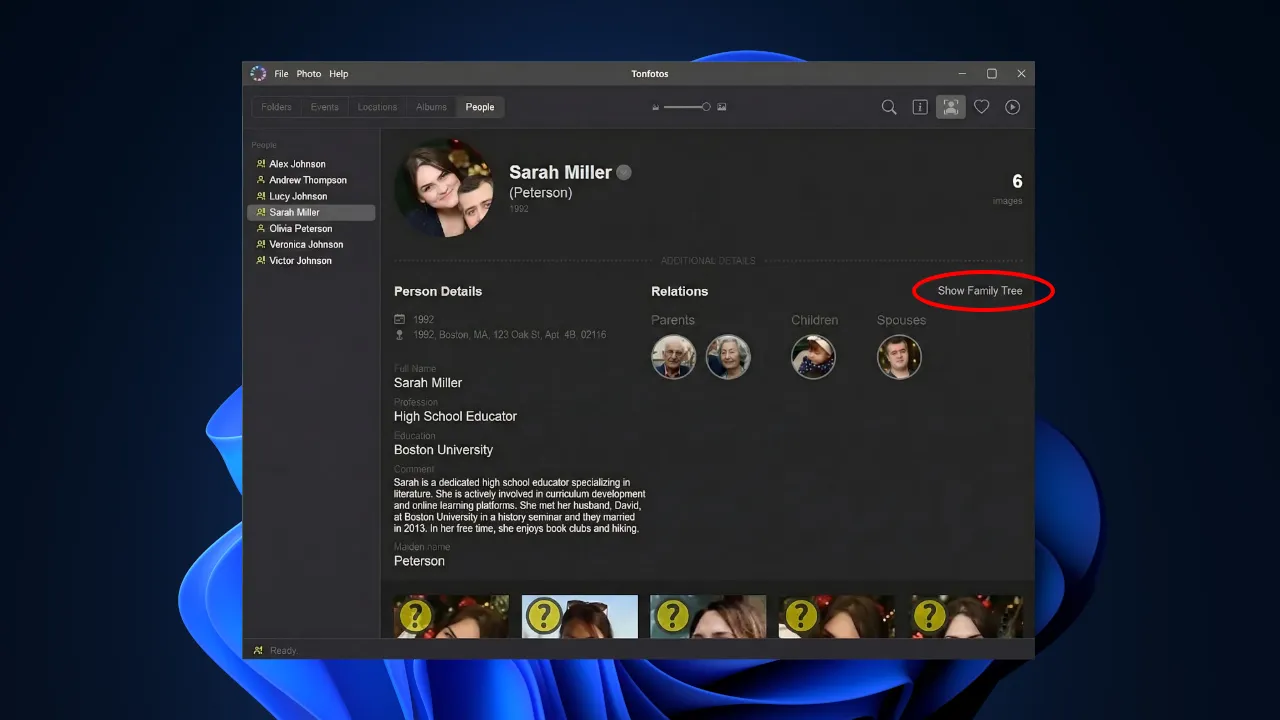
However, the program's main feature is the connections between individuals tagged in photographs. This is no longer just a collection of individual cards with people, but a complete structure reflecting the real relationships between them. These connections make it easier to navigate the archive. Simply click on one person to instantly see their relatives.
Additionally, when you click the show Family Tree button, Tonfotos will automatically generate a visualization of family connections.

The resulting image has a high resolution, sufficient for full-format printing in a printing house.
Editing metadata and geolocation
Even with perfectly configured automation, manual intervention is sometimes necessary. Sometimes the camera's date settings are out of sync, or you want to add an important comment to a photr5 o that will help you recall the context of the event years later. In Tonfotos, working with metadata is as intuitive as possible and accessible in just a few clicks.
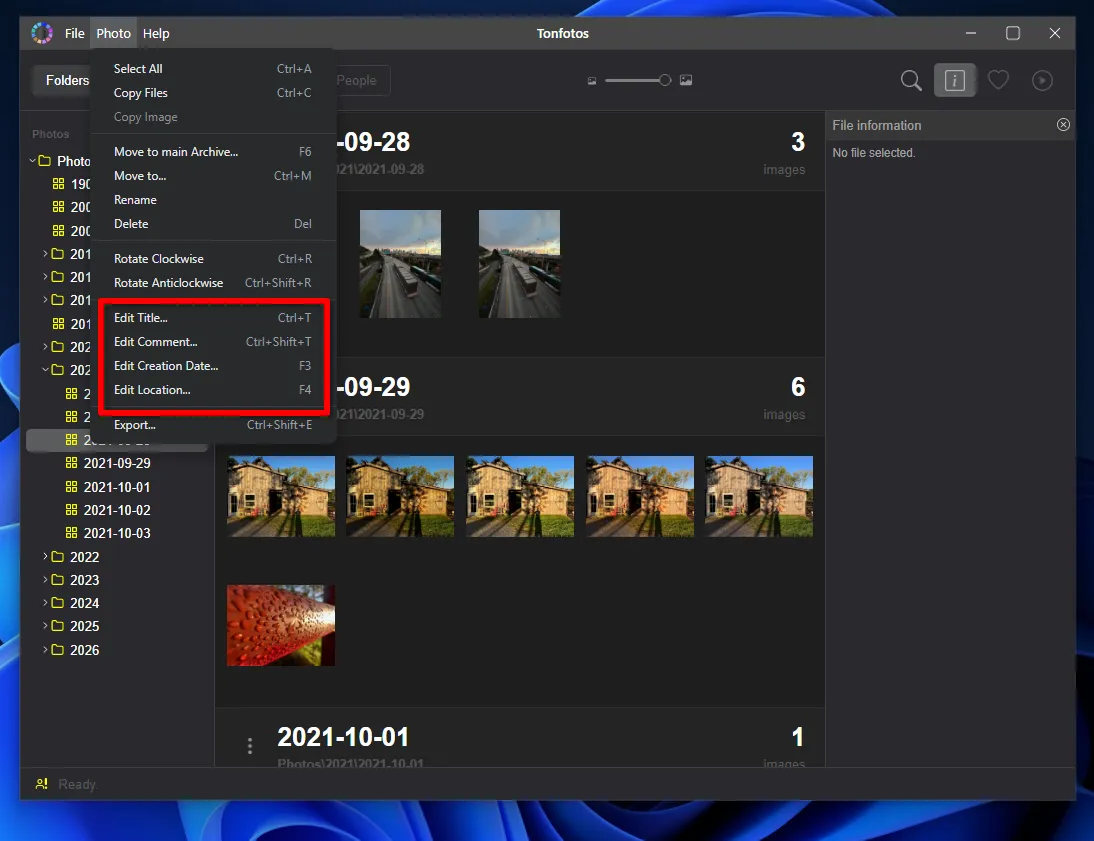
You can instantly edit key parameters of any photo or an entire group of files:
Title. Allows you to give your photo a meaningful title instead of the technical file code.
Comment. Here you can record the photo's story, which doesn't fit into short tags.
Shooting date. A great tool for digital archives or photos taken on devices without time synchronization.
Location. If your camera doesn't have a GPS module, you can manually specify where the photo was taken.
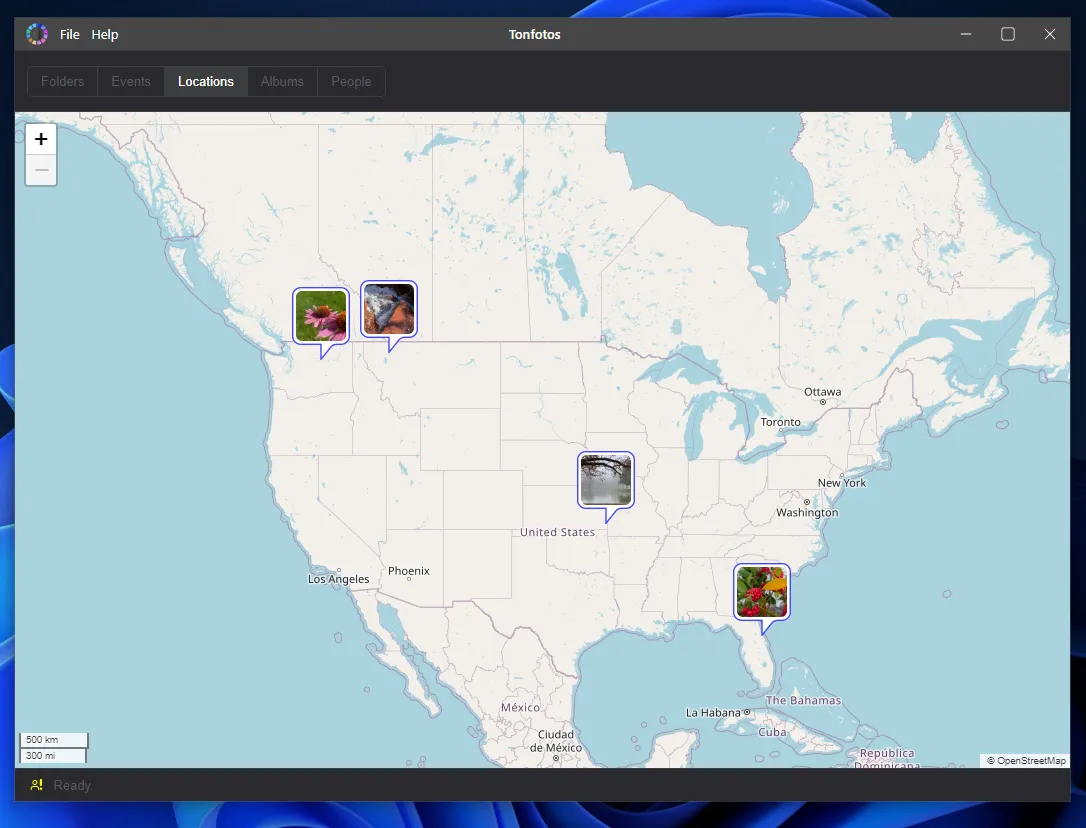
The program features a dedicated locations section that transforms your photo archive into an interactive world map. Instead of a list of folders, you'll see a global view of your movements, with groups of photos displayed as thumbnails and markers.
Conclusion
The system described here only works if it becomes part of a daily habit, not a one-time "spring cleaning." Therefore, the main practical advice is to establish a simple routine: after every significant event, or at least once a week, set aside 10-15 minutes to sort through new photos. During this time, it's enough to import photos, remove obvious junk, and add basic tags.
This approach requires little effort, but it makes a radical difference in the long term. Your archive doesn't grow chaotically, searches remain fast, and the value of each saved photo is meaningful. Ultimately, you're not just storing photos; you're maintaining a system that works for you for years.