Today most of our photos are taken with a smartphone. It is always close at hand when something happens that we will want to remember later. But phone storage is limited, phones break or get lost, and recovering lost pictures is often impossible.
In this article we will see how the Tonfotos desktop app and the TonfotosSync mobile app can work together to create a regular backup of photos from your phone into a family archive on your computer or NAS, and what the built‑in cable import can do as well.
Keeping the only copy of your family photos on the phone is risky and inconvenient. The device can be lost, stolen or damaged, and with it years of memories will disappear: meetings with friends, trips, children’s parties and other important moments of your life.
As more photos accumulate, the phone runs out of storage. You have to delete something at random or copy files manually. Over time it becomes hard to tell what has already been saved to the computer and what still exists only on the phone.
It is much more reliable and convenient when all photos automatically end up in a single archive on your computer or NAS, where you can easily view them on a big screen, sort them by date, place and people, create albums and share them with your family.
Tonfotos is a desktop application that stores and organises your photo archive. It works with photos on internal drives, external disks and network storage (NAS), helps you find pictures by people, dates and places, remove duplicates and preserve your family story.
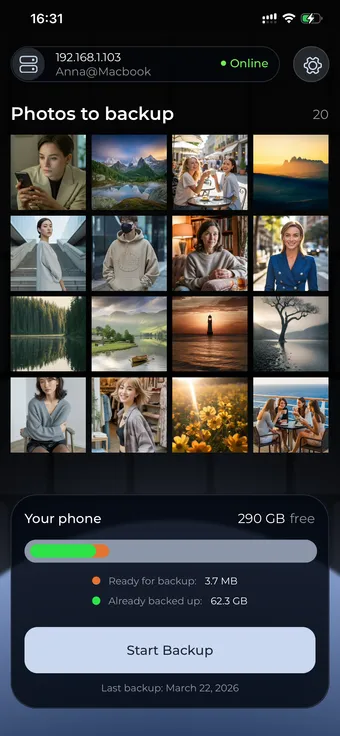
TonfotosSync is a mobile app for iOS and Android. It is responsible for making sure that new photos from your phone are regularly delivered to your Tonfotos archive. The app can transfer pictures over your home Wi‑Fi or over the internet and, where the system allows, can periodically run backups in the background.
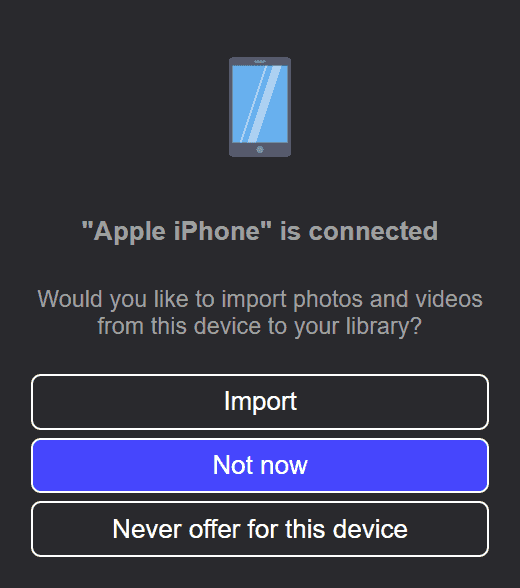
If for some reason you cannot or do not want to install the app on your phone, Tonfotos also has a built‑in automatic cable import. It lets you regularly pull new photos from the phone as well, but requires you to connect it to the computer with a cable.
This is the most convenient way to keep your phone backed up. It does not require cables, can work from anywhere in the world (if you have internet access) and supports several phones in the same family.
After pairing, TonfotosSync scans the media library on your phone and compares the list of files with what is already present in the Tonfotos archive. The app determines which photos still need to be transferred and which were uploaded earlier.
The first backup can take quite a while if a lot of photos have accumulated on the phone. During this time it is best to keep the phone on charge and not close the app. If the process is interrupted, TonfotosSync will continue from where it left off the next time you start it.
Later you can either start a backup manually from time to time in TonfotosSync — it will only send new photos — or enable the background mode (where supported by the system) so that new photos are uploaded automatically whenever the computer with Tonfotos is available.
You can read more about TonfotosSync features and configuration on the website tonfotossync.com.
If you cannot or do not want to install apps on your phone, or if you need to offload a large archive from your phone as quickly and reliably as possible, you can use the built‑in automatic cable import directly inside Tonfotos.
In this mode your phone is connected to the computer with a cable. Every time it is connected, Tonfotos finds new photos and moves them into the target archive folder without asking additional questions.
Before setting up import of photos and videos from your phone:

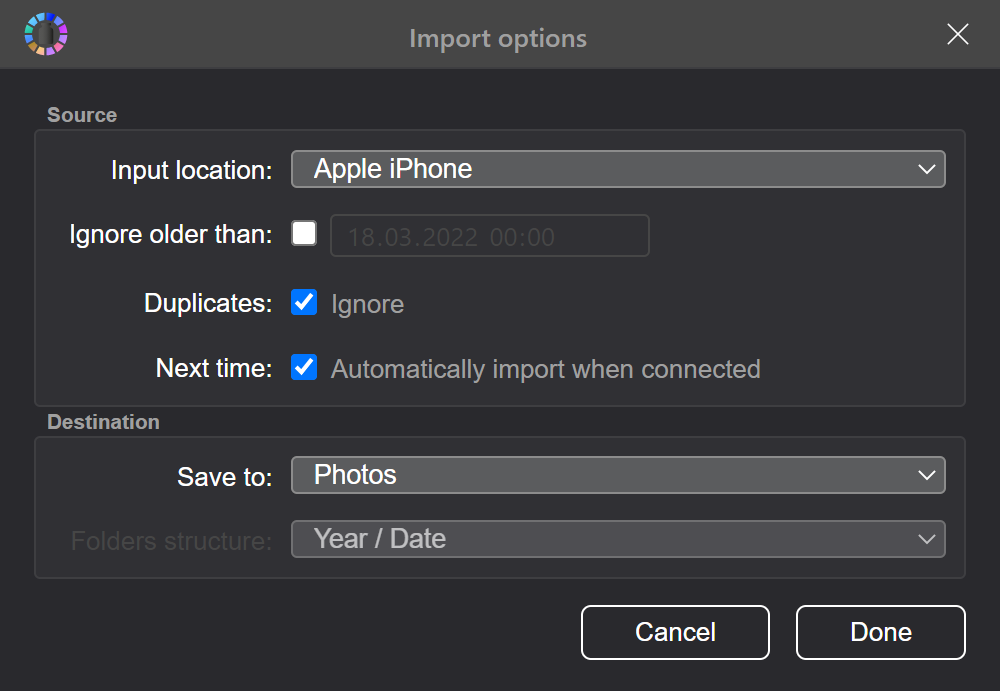
Once the archive is prepared you can configure automatic import. You only have to do this once; afterwards Tonfotos will take care of it every time the phone is connected.


If there are several thousand photos on your phone it may be a good idea to leave the first import running overnight. Tonfotos will automatically move all files into the right folder, arrange them by date and show them in the global archive timeline.
If later you want to change the folder where phone photos are imported to, or restrict import by date, you can do this in the Tonfotos import settings.
If when you first connected the phone you chose “Not now” and did not configure import, you can always enable it later in the same way — through the Import menu and by selecting the device in the list of sources.

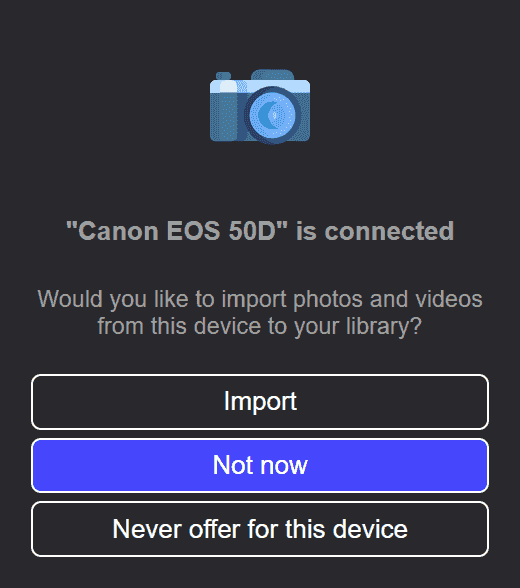
The import feature in Tonfotos works not only with phones but also with digital cameras. Tonfotos remembers each device and stores separate settings for each one: last import date, target folder and launch mode.
This is handy, for example, if photos from the parents’ phones are automatically imported into a shared “Family archive” folder, while pictures from a separate work camera go into a “Work” folder. Tonfotos imports new photos from each connected device one after another even if you plug them in at the same time.
Losing or breaking a phone is not just a technical problem. Together with the device you can lose years of your personal history: smiles at get‑togethers with friends, the excitement of children at the seaside, major family celebrations and small everyday moments that mean a lot.
By setting up a regular backup you protect these memories. Some people will prefer the TonfotosSync mobile app so that photos are sent to the archive automatically without any cables. Others will find it more convenient to plug the phone in with a cable from time to time and use the automatic import. What matters is that your photos are not left as a single copy only in phone storage.
Use the capabilities of Tonfotos to keep your family photo archive tidy and safely stored, so that you can come back to it just as easily in a few years as you can today.
We use cookies to improve your website experience. By continuing to browse the site, you agree to our use of cookies. Cookies Policy