Filters and Search
Tonfotos helps you quickly locate and manage your photos by offering two ways to narrow down what you see: search and filters. Though these features look similar, they serve different purposes:
- Use search to jump directly to a single person, folder, album, or file by name.
- Use filters to add or exclude multiple conditions, so that you can see all matching images in your library. Think of filters as an advanced search.
Searching in Tonfotos
Press CtrlF (or CmdF on macOS) to open the text search field. Type a few letters of an item's name and then select the matching result from the suggestions. If you're searching for file names, wait a little for suggestions to appear. Tonfotos will take you directly to that item in one click.
You can search for:
- Persons by name (including middle name, maiden name, and any other names available in their personal profile)
- Folders
- Albums
- Tags
- File names
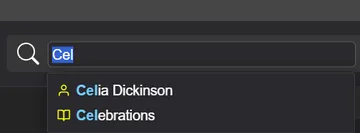
For example, a search string like "vac sum" will find a folder named "Summer vacation", and a search string like "J D" will find "John Doe," "Jane Doe," etc.
Filtering in Tonfotos
Filters are ideal for more complex searches, such as "find all photos with me and my spouse, but without the kids." You can add multiple conditions (for people, tags, albums, geolocation, specific folders, file names, and shooting dates) and view all matching images. Filters work only in the Events tab, where you see all images in chronological order without hidden subfolders or grouping.
Press CtrlAltF, or CmdOptionF on macOS, or go to the Events tab and click  . In the text field that appears, type an item's name, a file name fragment, or a date, and then select a suggestion to add it as a filter condition.
You can filter by:
- Person found by name (including middle name, maiden name, and any other names available in their personal profile)
- Folders
- Albums
- Tags
- Files by name and extension
- Photos taken on the same day in different years
- Location
- Special filters
- Unassigned faces
- Files without faces
- Files without GPS location
- Files without tags
- Only photos
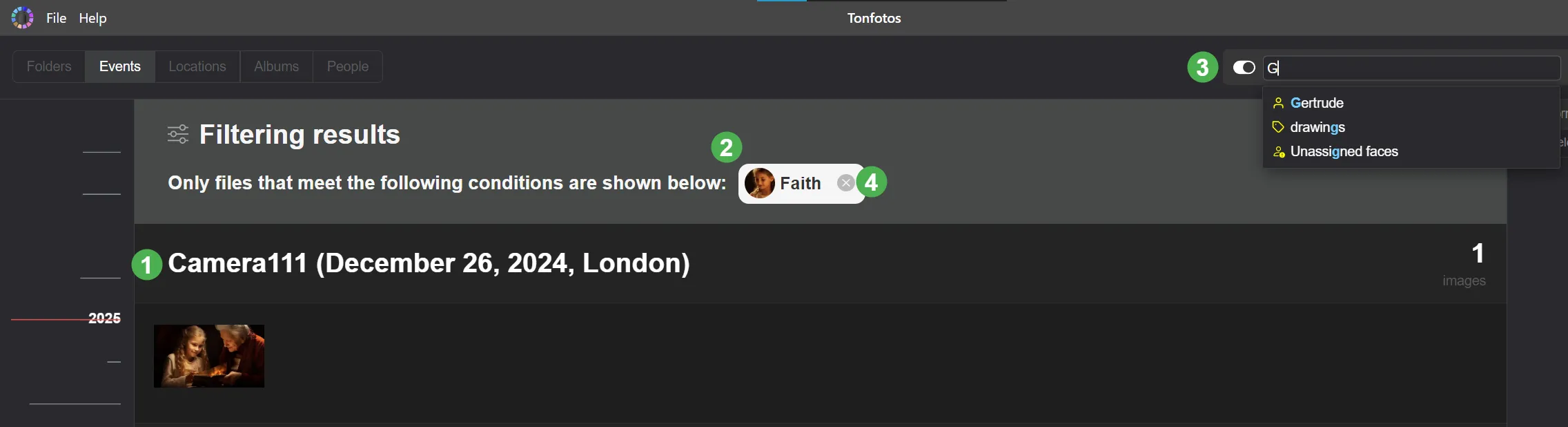
When you add a filter condition, the filtered photos will be shown in the Events tab, grouped by events 1. At the top, you will see the currently selected conditions 2.
Add still more conditions by pressing CtrlAltF, or CmdOptionF on macOS, or clicking again and entering the new condition 3. To remove one of the current conditions, click the cross next to it 4.
Using negative filters
Toggle the switch to the left of the filter field before selecting an item to add it as a negative filter. This narrows your set of images by excluding any that match the condition. For example, you may want to exclude all photos with a certain person.
Filtering by file name and extension
To gather all copies of the same file or all images of a particular format, type a fragment of a file name into the filter bar and select the Name contains suggestion.
For example, searching for "(1)" will show all copies with names like "IMG_0001 (1).jpg" — handy for finding re-downloaded files so you can compare them or delete the extras. Searching for "png" will collect all PNG files, for example to convert them to another format or to check how many are in your archive. The suggestion shows the number of matching files.
The same day in different years
To recall what happened on the same day in different years — for example, how you celebrated a birthday or New Year's Eve — type a date into the filter bar and select the Taken on suggestion.
Searching for "January 1" will show all photos taken on January 1 of any year. This way you can collect a selection from one holiday over many years, or compare how the same place changed year after year.
Filtering by geolocation
To filter by geolocation, go to the Locations tab and double-click a location thumbnail to add it as a location-based filter. The radius around the exact location is determined automatically, depending on the map scale at the moment when you click on the avatar. If you'd like to include more photos, zoom out before clicking.
This filter will exclude all images without geolocation metadata.
Special filters
File > Filters menu section provides some additional filters that might be useful for identifying images in your archive that require additional work.
- The Unassigned faces filter shows all the photos that still have some faces without confirmed names to them. Combine it with other filters to group the photos and name the people on them or ignore the suggestions.
- The Files without faces filter shows all the photos that contain no detected faces. Using it as negative filter, will show all files with at least one face detected.
- The Files without GPS location will show all files that do not contain GPS location in its metadata.
- The Files without tags filter shows all files that have no tags assigned yet. Use it to sort through untagged images and keep your archive tidy.
- The Only photos filter shows only photos, leaving videos out. If you need the opposite result — videos only — add this filter as a negative filter: Tonfotos will exclude photos and leave only video files in the selection.
Resetting filters
To remove a single condition, click the cross on its filter plank.
To clear the whole set of conditions in one action, right-click any filter plank and select Clear this filter or Clear all filters. This is handy when you have been trying different conditions and want to return to the full timeline without removing filters one by one.