I don’t know whether it’s the influence of social media and short-form videos, but I’ve increasingly found myself wanting to record a video rather than simply take a photo to capture a moment. Getting used to video content may be part of the reason, but there’s another factor, too. Modern smartphones can record high-quality video, even in 4K. So why not make the most of that?
Over time, I noticed that more and more video recordings were accumulating in my home archive. Family events, trips, walks, and everyday moments were gradually turning into a pile of files that was difficult to navigate. I wanted to get things organized, sort the recordings, and build a structured collection so that I could easily find a video whenever I needed it—even years later.
In practice, however, the task turned out to be more complicated than I expected. Cataloging and sorting videos is quite different from working with photos. You can assess a photo at a glance, whereas a video is a stream of frames, any of which may contain something important. To understand what a recording contains, you often have to watch it all the way through or at least review selected sections. Turning years’ worth of accumulated footage into an organized collection can therefore feel like an endless quest.
That’s why I started looking for software that could do more than simply store videos in folders and help me catalog my home archive properly. As it turned out, finding a suitable solution wasn’t easy. Many tools are good at organizing photos, but managing video requires a somewhat different approach.
Setting Priorities
Before getting started, it helps to have a plan. When choosing the best video management software, that means making a list of the criteria a program should meet.
Video library organization. The software should let you combine recordings stored in different folders into a single library. When new videos are added, they should also appear in the same interface automatically.
Video playback and preview. It should support video playback without requiring additional codec installations, generate thumbnails, and offer previews. It should also provide ways to select recordings using manual or automatic ratings.
Search, filtering, and navigation. It should offer fast searches by filename, path, and folder, as well as combined filtering based on multiple technical parameters.
Metadata and organization. It should let users assign custom tags describing people, events, places, topics, and other characteristics, and group recordings into themed albums.
Perhaps I’m asking a lot of this kind of software, but it would be great if a manager could recognize faces and group them together. Ideally, I wanted more than a file catalog with convenient search: I wanted a full-fledged media library where I could quickly find a particular moment. After all, that’s the whole point of organizing everything this way.
Once I had defined my requirements, it became clear that choosing software based only on an attractive interface or the number of features wouldn’t be enough. What mattered more was how quickly I could find the video I needed and how much manual work cataloging would require. That’s why, when comparing the options, I paid particular attention to previews, filters, searches by people and scenes, and whether files had to be moved into a separate library.
Tonfotos
Tonfotos is primarily photo management software, but it also includes features for organizing videos. In practice, it’s an all-in-one tool for managing your entire home media collection.
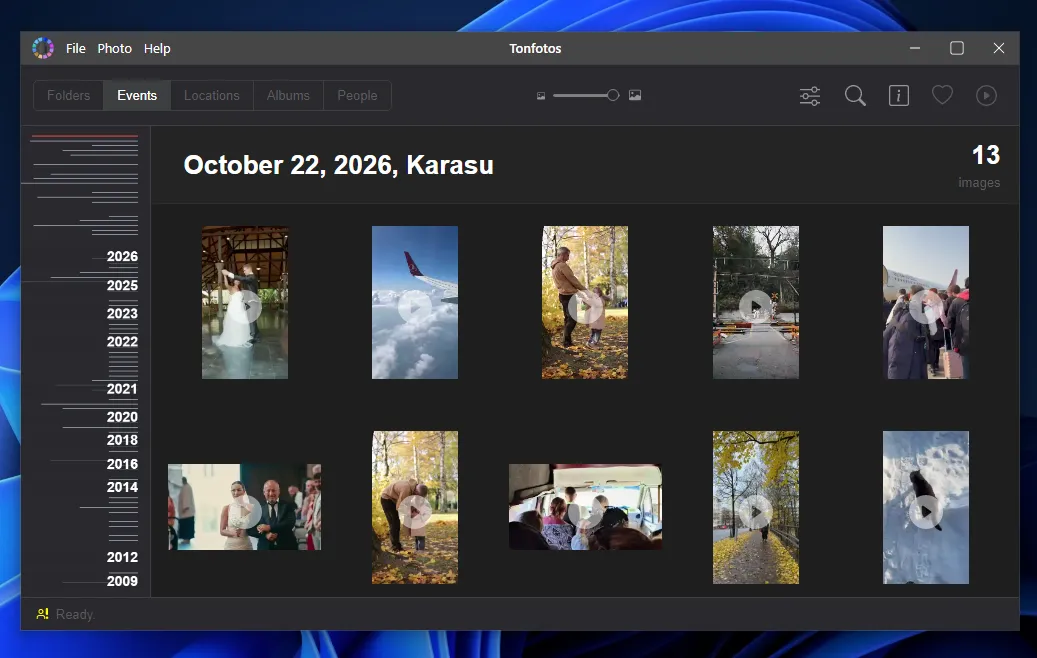
The program offers several ways to sort content. One of the main features is its chronological timeline. Videos are integrated into the same calendar as photos. You can quickly switch between years using the timeline on the left, while a play icon over each thumbnail makes videos easy to distinguish in the grid.
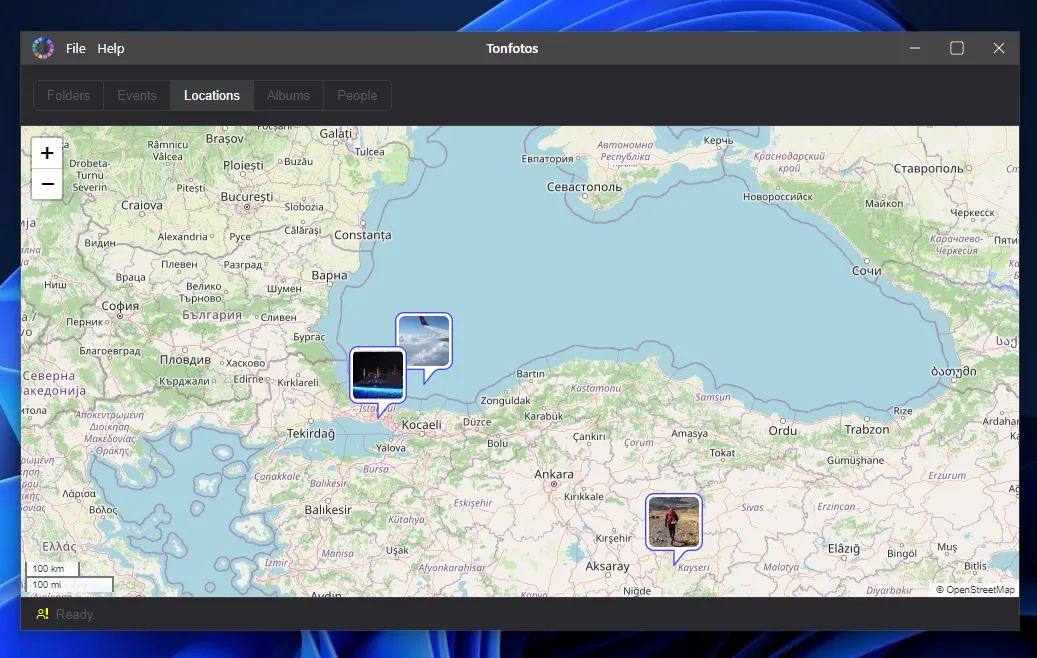
If videos or photos contain GPS tags, the program automatically places them on a map. This provides a visual overview of where your trips took place. You can also open media files directly from the map.
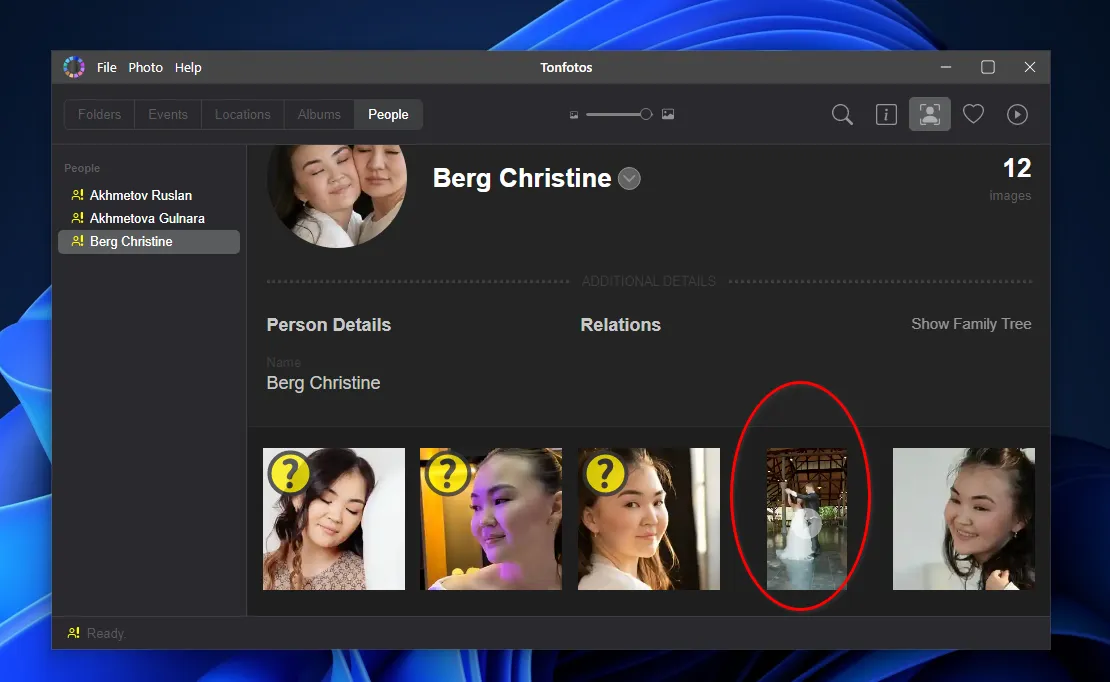
If faces have been recognized, you can add a video to a specific person’s profile in the People section. The recording will appear in that person’s collection alongside their photos.
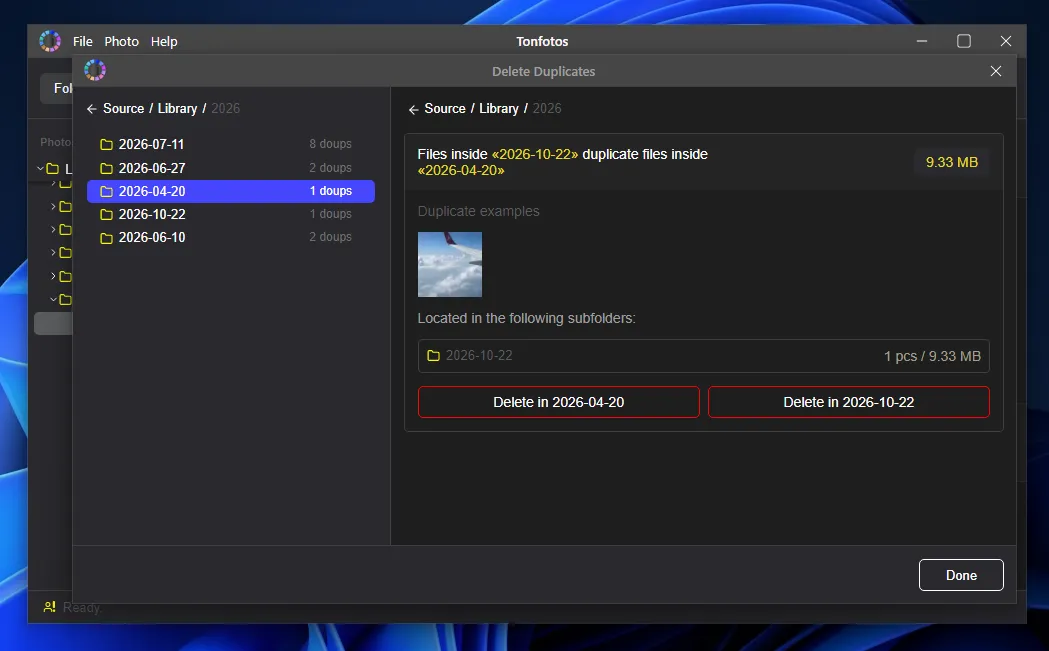
Tonfotos includes a tool for scanning the library and finding identical media files. It compares copies stored in different folders, shows how much space they occupy, and lets you quickly remove duplicates.
Personally, I like the idea of keeping videos and photos as part of the same story. If pictures and clips were taken during the same trip or family event, it’s more convenient to find them together rather than switch between separate catalogs.
Advantages of Tonfotos as Video Management Software
All indexing algorithms and neural-network-based face recognition run on the user’s computer.
The application is available for Windows, macOS, and Linux, making it easy to move the database and media library settings between operating systems.
Tonfotos isn’t overloaded with complicated technical menus and is easy to learn, even for people who have never used this kind of application before.
A mobile app is available for automatically synchronizing videos on a phone with the main archive on a computer.
Disadvantages of Tonfotos as Video Management Software
If videos don’t contain correct date tags or GPS coordinates, automatic organization by location and chronology may not work as expected.
Initial indexing of a large archive can take considerable time. The more files that need to be processed, the longer you may have to wait for scanning and media library preparation to finish.
Adobe Bridge
Bridge is a free digital asset management tool from Adobe. It is designed to quickly organize source files and finished projects created in other applications in the Adobe ecosystem. However, it can also be used as a home video manager.
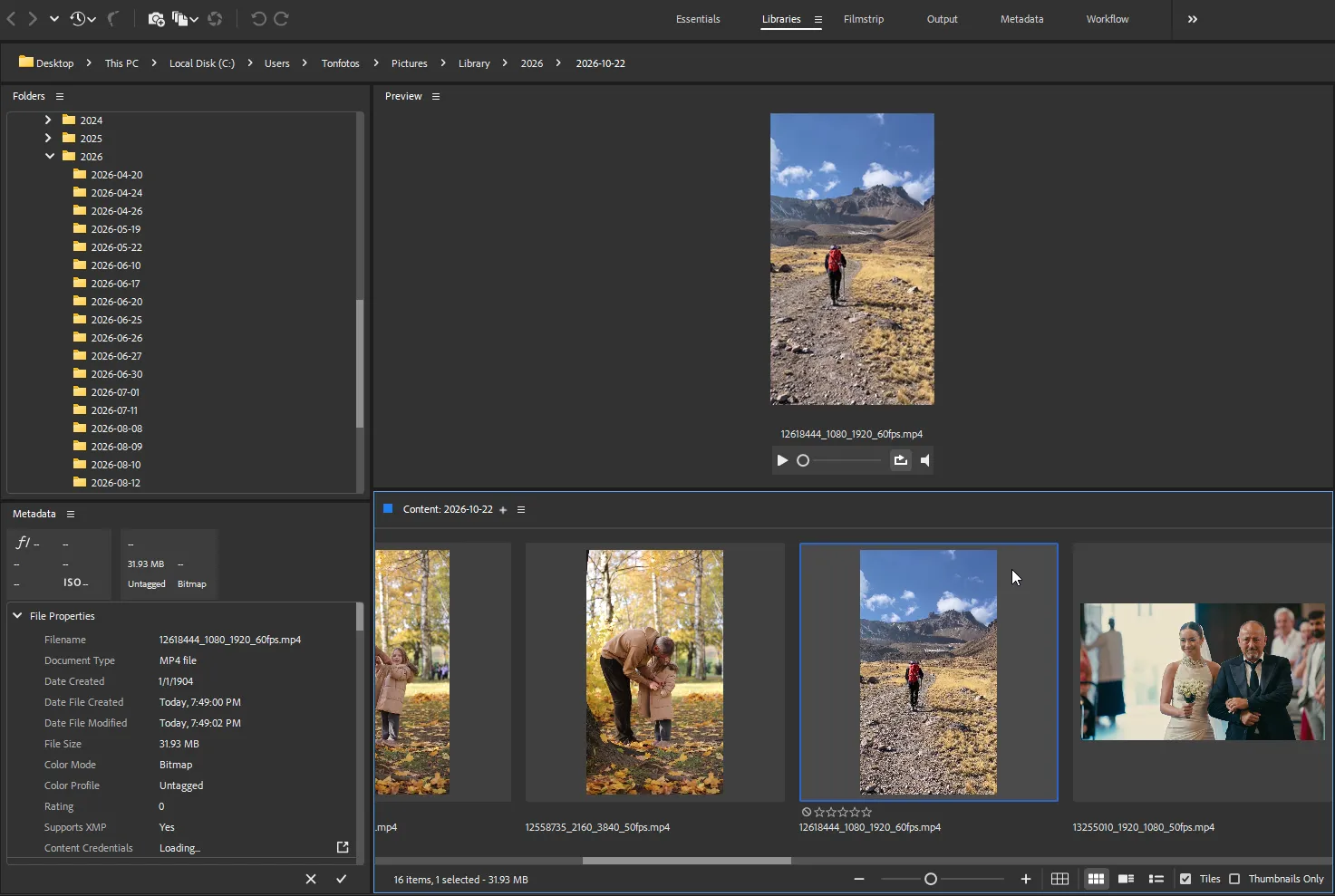
One particularly useful feature for sorting through a large video collection is hover preview. It lets you inspect a file by simply moving the mouse pointer over its thumbnail in the grid. In practice, this can save hours.
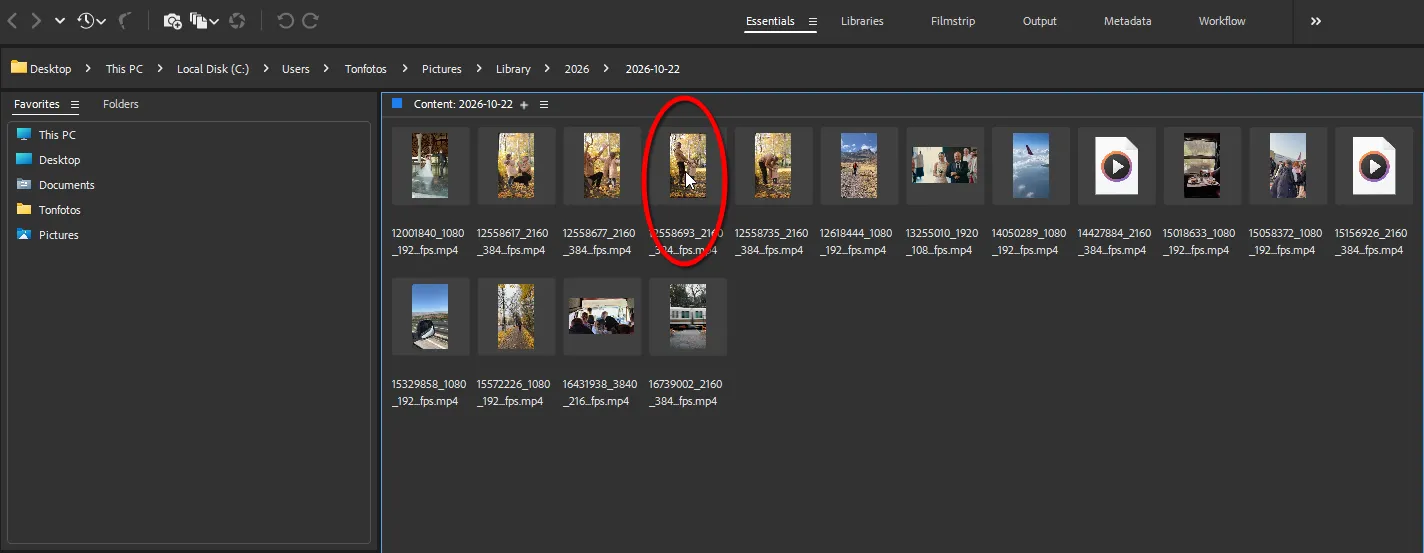
Its sorting and filtering tools are on a level comparable to those used in professional video workflows. You can assign each video a rating from one to five stars with a single click, apply a color label, or add detailed tags and XMP/IPTC metadata. The filter panel lets you narrow down videos by key parameters almost instantly. For example, you can display only clips recorded in 4K, with a specific frame rate, on a certain date, or with a particular camera model.
Another feature worth mentioning is batch renaming. If a camera or phone creates filenames such as GX010042.MP4, Bridge can rename hundreds of recordings in seconds. For example, you can add the date, trip name, and sequence number.
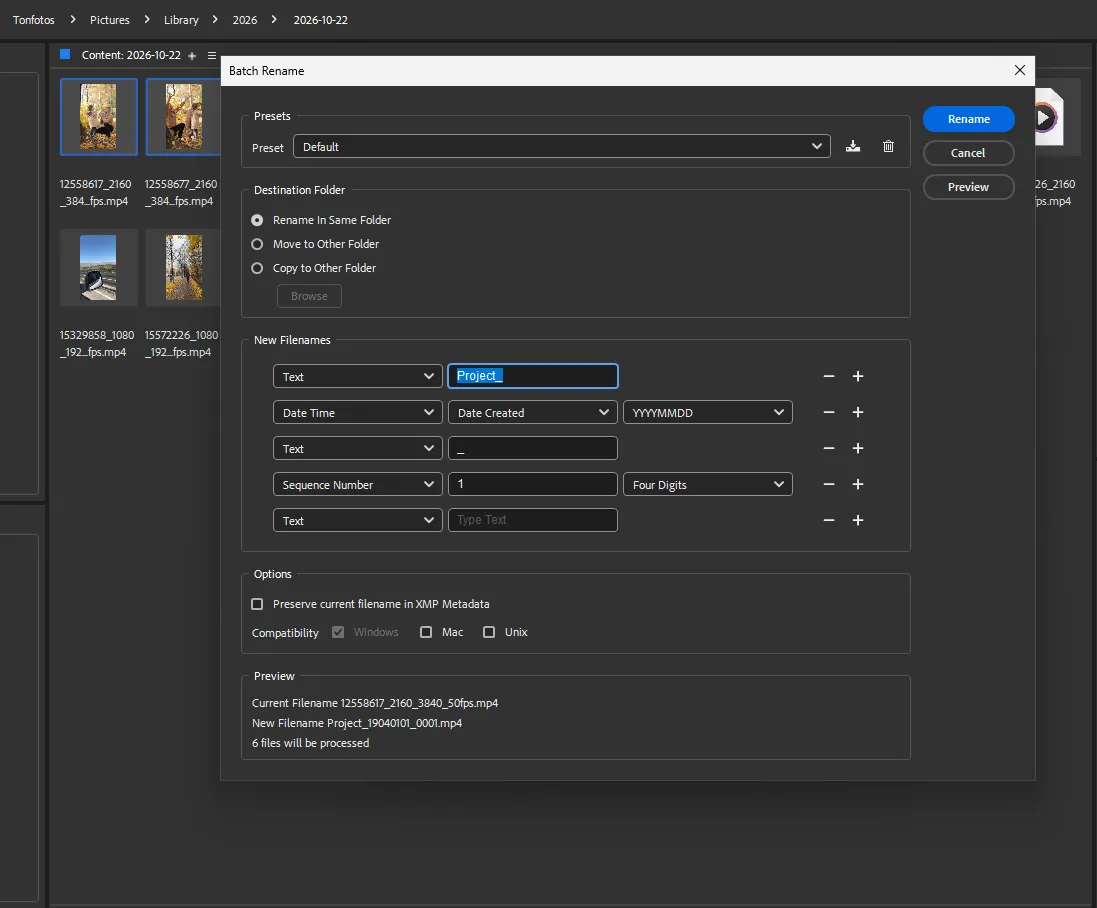
What I like about Adobe Bridge is the ability to preview and select files quickly without opening each one individually. Ratings, color labels, and batch renaming are useful when a drive contains lots of clips with technical filenames. However, the program is designed for more than just home collections, so its interface may feel excessive for simple tasks.
Advantages of Adobe Bridge as Video Management Software
The program is available without an Adobe subscription.
It works directly with the file system.
It offers convenient previews.
It provides extensive metadata and filtering tools.
It supports batch processing.
Disadvantages of Adobe Bridge as Video Management Software
It can put a heavy load on the system.
The interface can feel cluttered.
It has no built-in tool for visualizing where a video was recorded on a map.
NeoFinder
The main difference between NeoFinder and other video managers is its ability to combine recordings stored in different locations into a single catalog: your computer’s main drive, external HDDs, flash drives, and network-attached storage (NAS). This lets you manage your entire video collection in one place without moving all the files to a single drive.
The program scans a storage device and creates a compact database containing thumbnails and technical information. Need a video from a trip five years ago? Simply enter a keyword or filter files by date on your computer. NeoFinder will show a thumbnail and tell you which physical drive contains the original—for example, “Drive_Archive_2021.”
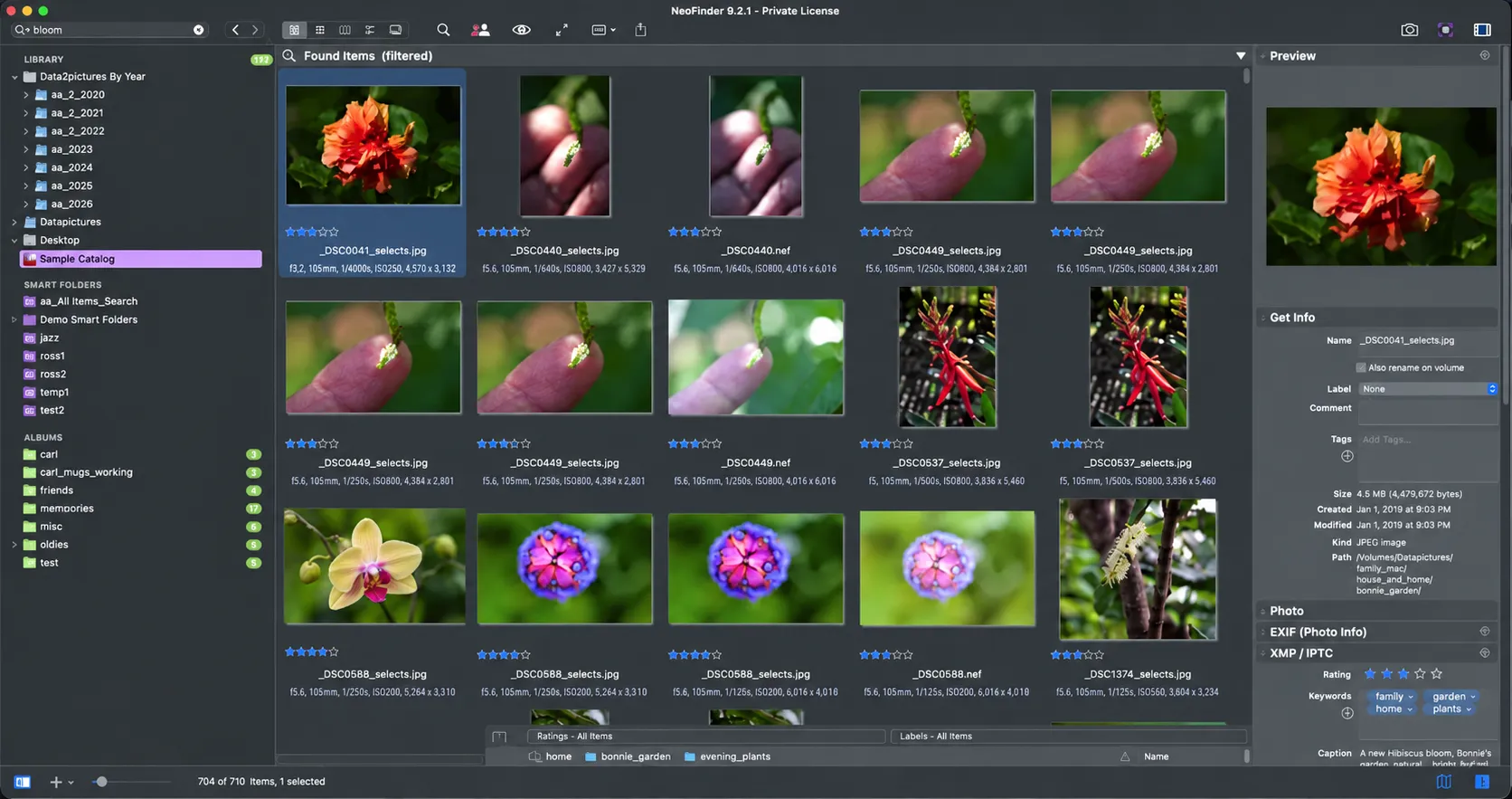
The program works well with metadata and technical information. NeoFinder reads everything from codecs, resolution, and bitrate to GPS coordinates and EXIF/XMP tags. Historically, NeoFinder was developed as a Mac application (it was previously called CDFinder) and is well suited to the Apple ecosystem. Windows users can use a fully compatible version from the same developers called abeMeda.
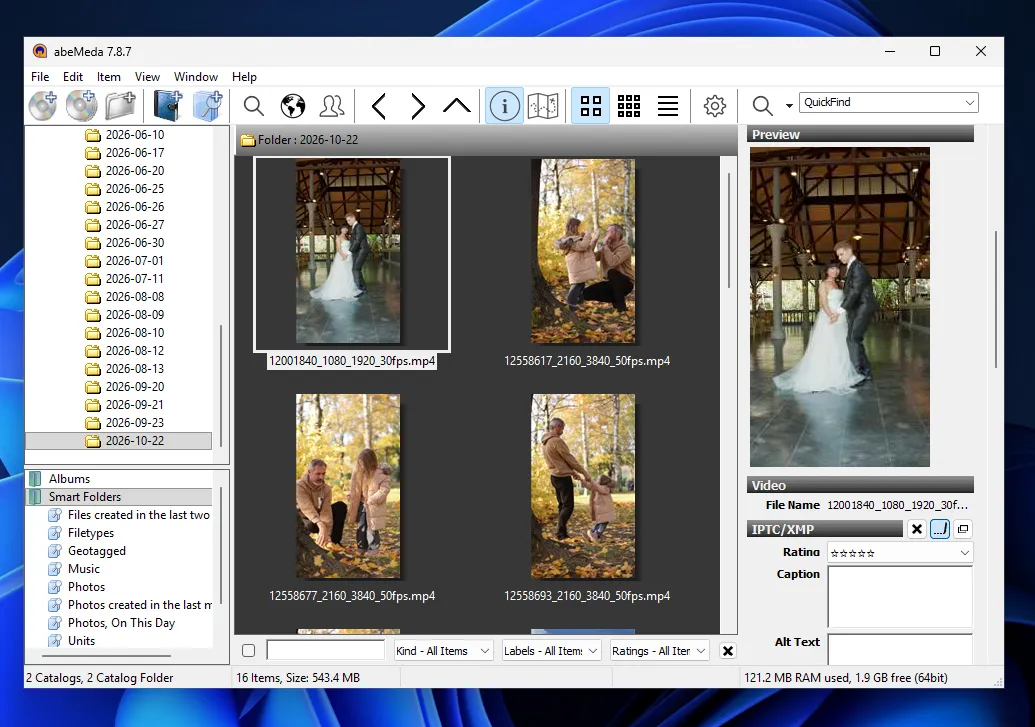
For my use case, the idea of a catalog that helps locate files across different storage devices is particularly useful. I don’t always want to gather the entire archive on one drive, especially when some recordings are stored on external HDDs or a network drive. In that situation, it’s helpful not only to see a thumbnail but also to know exactly which storage device contains the original.
Advantages of NeoFinder as Video Management Software
Search and video thumbnail previews work even when external hard drives or NAS devices are physically disconnected.
It automatically generates grids of keyframes, helping you understand a video’s content without playing it.
The program can handle hundreds of thousands of files without consuming excessive RAM.
It supports all popular video formats, including professional RAW formats such as R3D and BRAW.
Disadvantages of NeoFinder as Video Management Software
Its interface has a strict, technical look and feels more like an engineering tool than an application for managing home videos.
It has no built-in media player, so video files must be played using system applications.
The macOS and Windows versions are effectively different programs (NeoFinder and abeMeda), although they are backward-compatible with each other.
Video Hub App
Video Hub App was created as a local alternative to YouTube or Netflix. Rather than simply gathering videos in one folder, it organizes them into an appealing media library.
When you hover over a card, a sequence of preview frames starts playing. This makes it possible to find a scene or recall what a video contains in seconds, without even clicking the file.
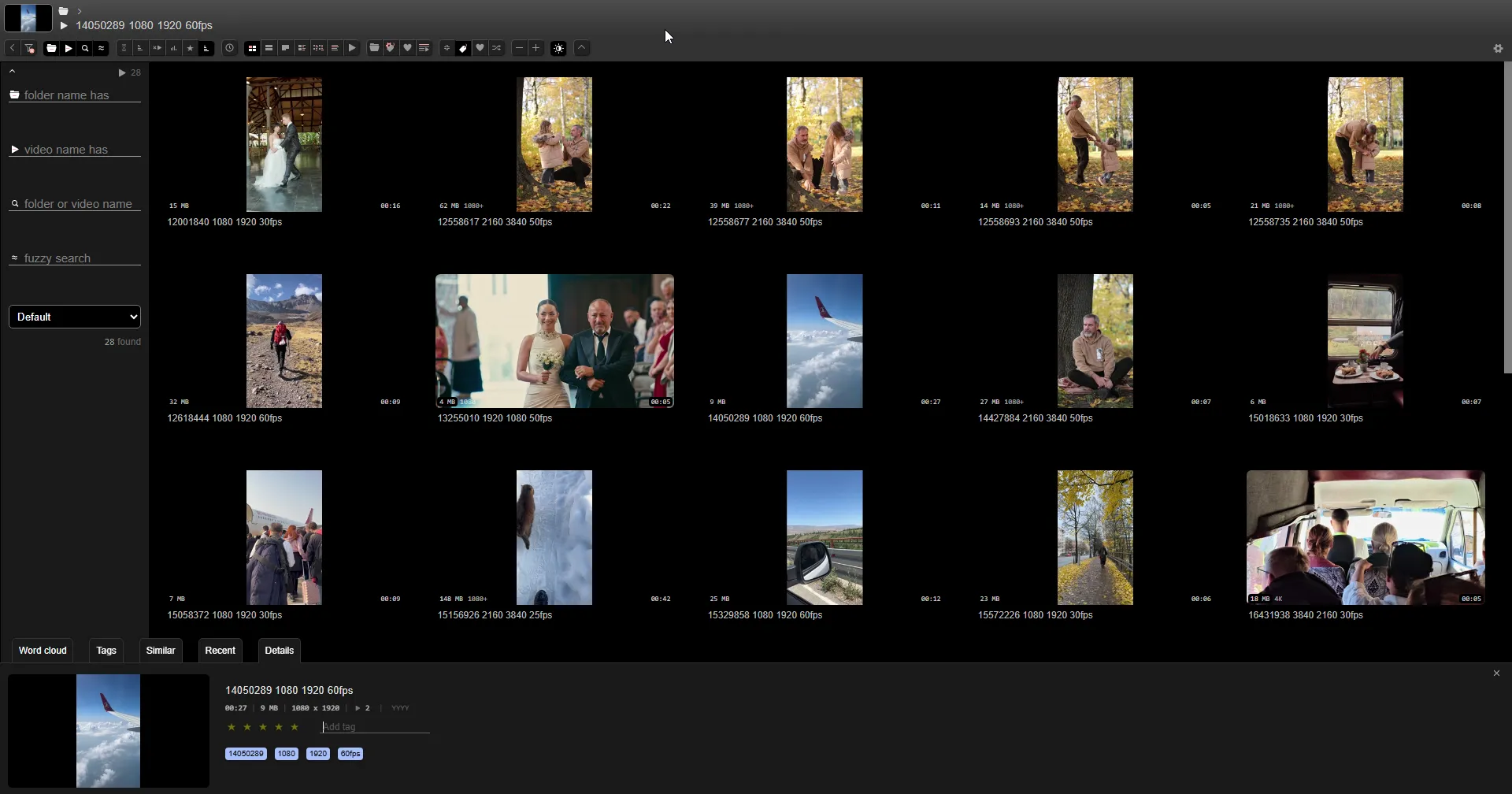
The app uses a simple system of tags, categories, and star ratings to organize an archive. Videos can be grouped into “hubs,” allowing you to separate a family archive, drone footage, and work files into independent libraries. Video Hub App doesn’t move the actual files on the drive; it works on top of the existing folder structure.
Video Hub App is especially interesting because it makes browsing an archive feel like using a streaming service. Instead of a plain list of filenames, users get a visual library with dynamic thumbnails. In my view, this approach is useful for people who tend to remember videos by what happened on screen rather than by the recording date or filename.
Advantages of Video Hub App as Video Management Software
Its streamlined, streaming-service-style design makes browsing videos comfortable.
Automatically generated dynamic thumbnails let you assess a clip’s content without launching a separate player.
Sliders for duration, file size, and resolution make it easy to narrow down recordings.
The application works on Windows, macOS, and Linux without burdening the system with unnecessary background processes.
Disadvantages of Video Hub App as Video Management Software
It doesn’t support standard metadata such as XMP/EXIF tags, GPS coordinates, or camera model information.
Generating high-quality animated previews for a huge archive requires additional free space on an SSD.
A demo version is available with a file-count limit, but full use requires payment.
Kyno by Signiant
Kyno is positioned by its developers as a media management tool for professional camera operators and video editors. However, it can also be useful for sorting through gigabytes of accumulated home videos.
The program works directly with files without creating its own database or moving them elsewhere. Simply select a folder on your computer, external hard drive, or NAS, and Kyno immediately displays its contents with ready-made thumbnails.
This manager includes a built-in player that supports almost any video codec. Playback is smooth and responsive. You can assign a star rating to each video, apply a color label, and add tags or a text description. Kyno also lets you mark a specific section of a video or place a marker at an important timecode without cutting or re-encoding the original file.
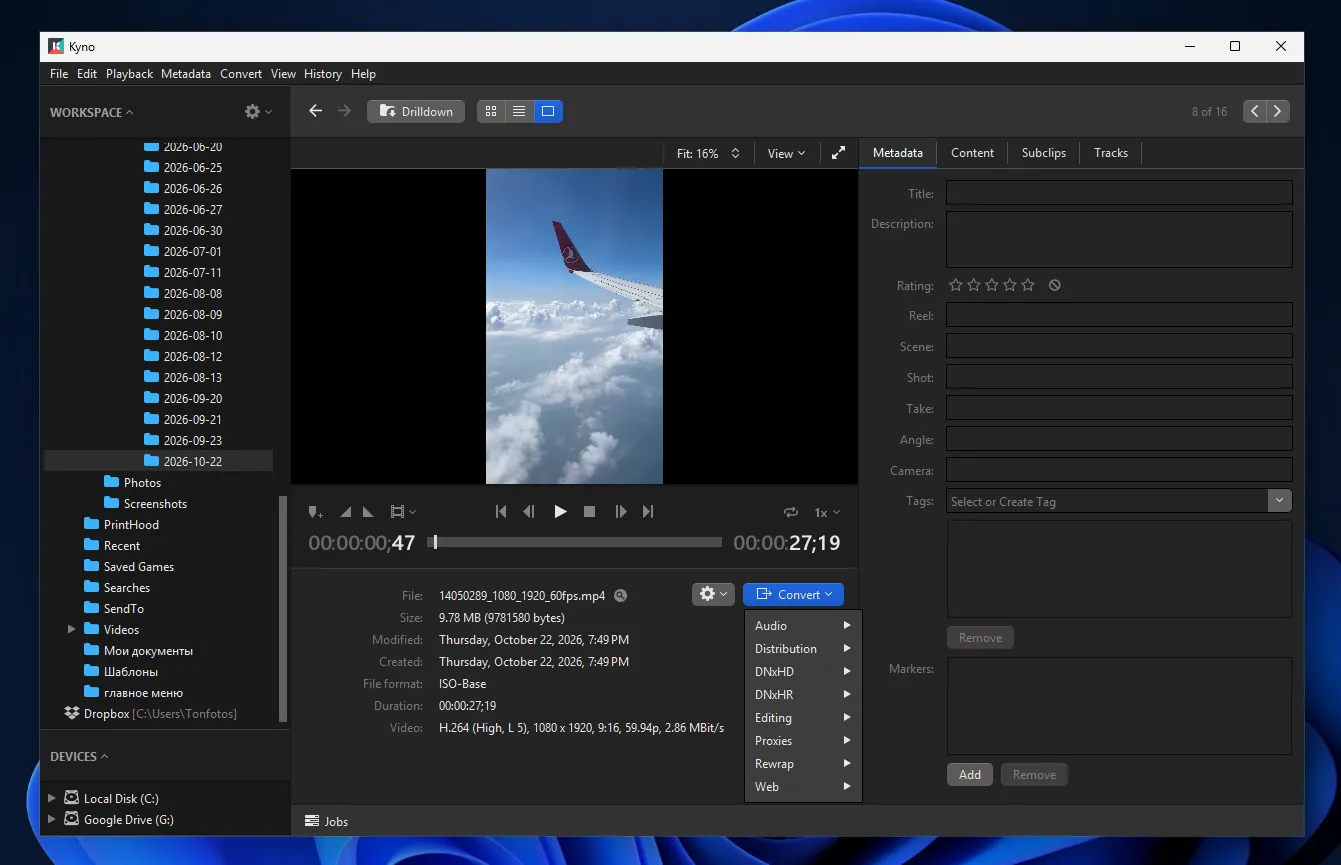
Its advanced filtering system lets you search for clips by keywords and tags as well as technical video parameters. If filenames generated by a camera or smartphone look like a random mix of letters and numbers, the built-in batch-renaming tool can quickly standardize them.
Based on these features, Kyno is better suited to people who not only store videos but also regularly select footage for further work. Labels, notes, and timeline markers help identify important sections without changing the original file. This may be excessive for an ordinary home archive, but it can be practical for filming and small video projects.
Advantages of Kyno as Video Management Software
It works directly with folder structures on local and network drives without importing files into an isolated database.
It supports most professional and consumer video codecs.
It offers extensive organization options, including tags, ratings, color labels, and text notes, without modifying the original.
It provides detailed filtering based on technical metadata.
It includes batch-renaming tools and video conversion to other formats.
Disadvantages of Kyno as Video Management Software
The program is aimed at video creators, so its interface may seem complicated for simple tasks.
It lacks automatic face recognition and the ability to place recordings on an interactive map using GPS coordinates.
The software has been developed and updated slowly, which may affect stability.
Peakto
The main idea behind Peakto is to bring files from scattered folders, hard drives, and NAS devices together in one interface, along with catalogs from other applications such as Apple Photos, Lightroom, and Capture One. Its video cataloging capabilities go a step further.
Peakto comes with a built-in neural network that analyzes video content on the fly. This lets you search for specific shots using ordinary text in the search bar. Instead of manually adding tags, you can enter a simple query and the program will find relevant clips and specific segments.
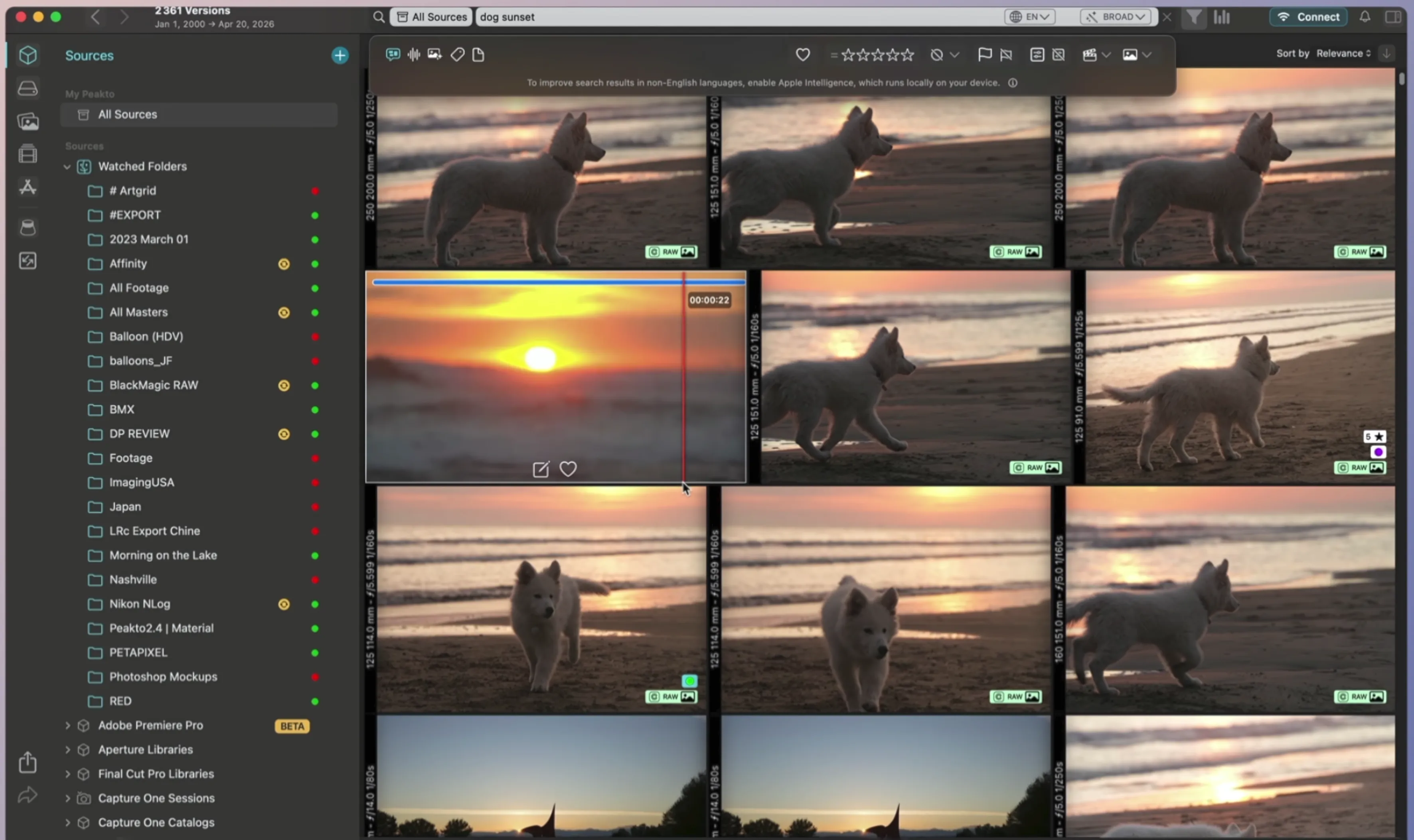
If a video contains dialogue, Peakto can find a specific phrase or expression.
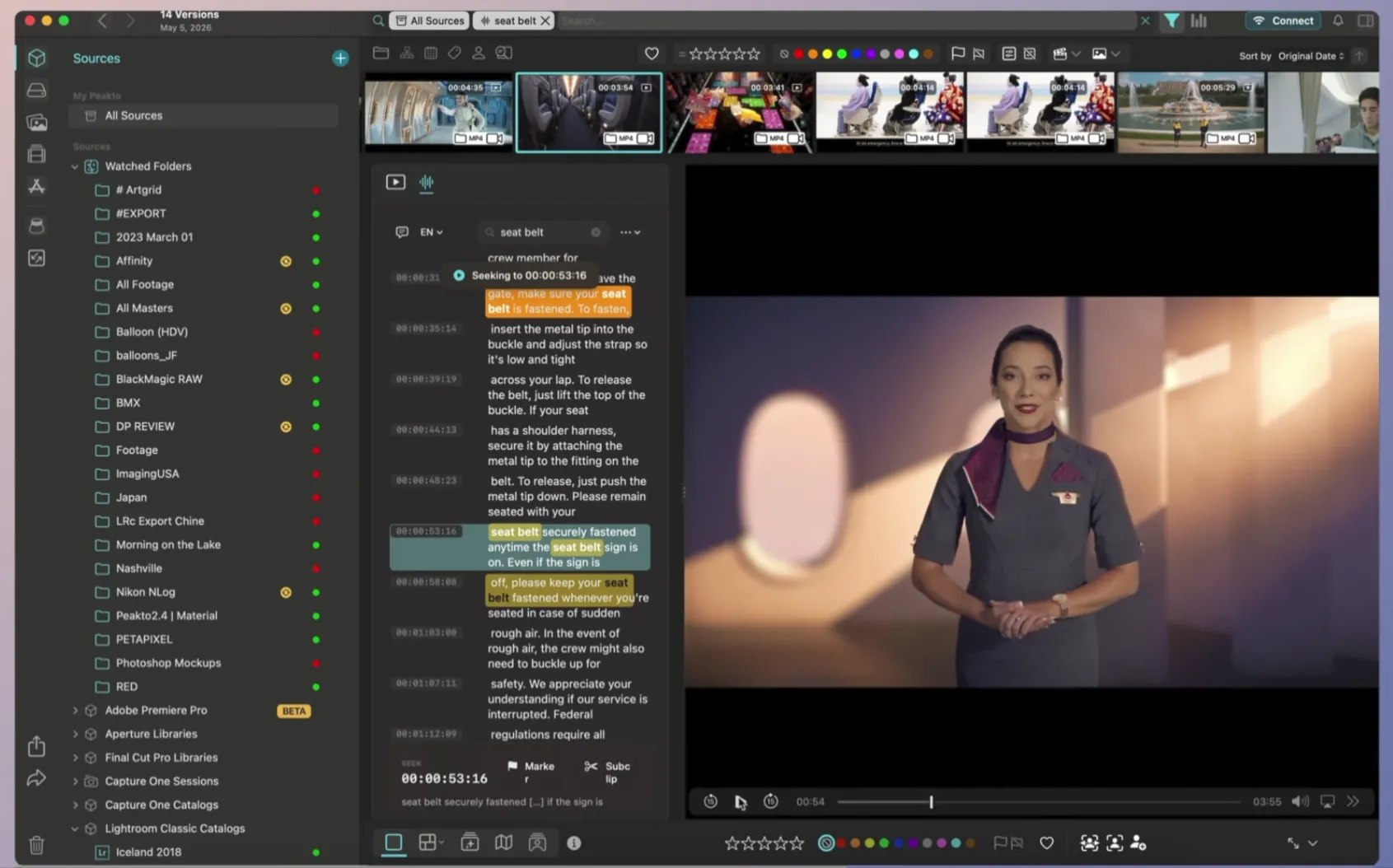
The file grid supports quick scrubbing. Simply move the cursor across a thumbnail to assess a video’s content instantly. If you need to examine a clip in more detail, Peakto can automatically break it down into keyframes and find visually similar scenes.
However, you’ll need a Mac to take advantage of all the program’s features. Peakto is developed exclusively for Apple computers.
Advantages of Peakto as Video Management Software
AI-powered search using natural-language descriptions of scenes, visually similar frames, and even spoken dialogue.
The ability to combine local folders, NAS devices, flash drives, and catalogs from third-party applications in one media library.
Tools for selecting footage and sending projects directly to video editors.
All neural-network processing takes place on the user’s computer without sending videos to the cloud.
Disadvantages of Peakto as Video Management Software
The application is available exclusively for macOS.
Initial AI analysis and transcription of a large video collection can take a long time and put a heavy load on the processor.
ClipCatalog
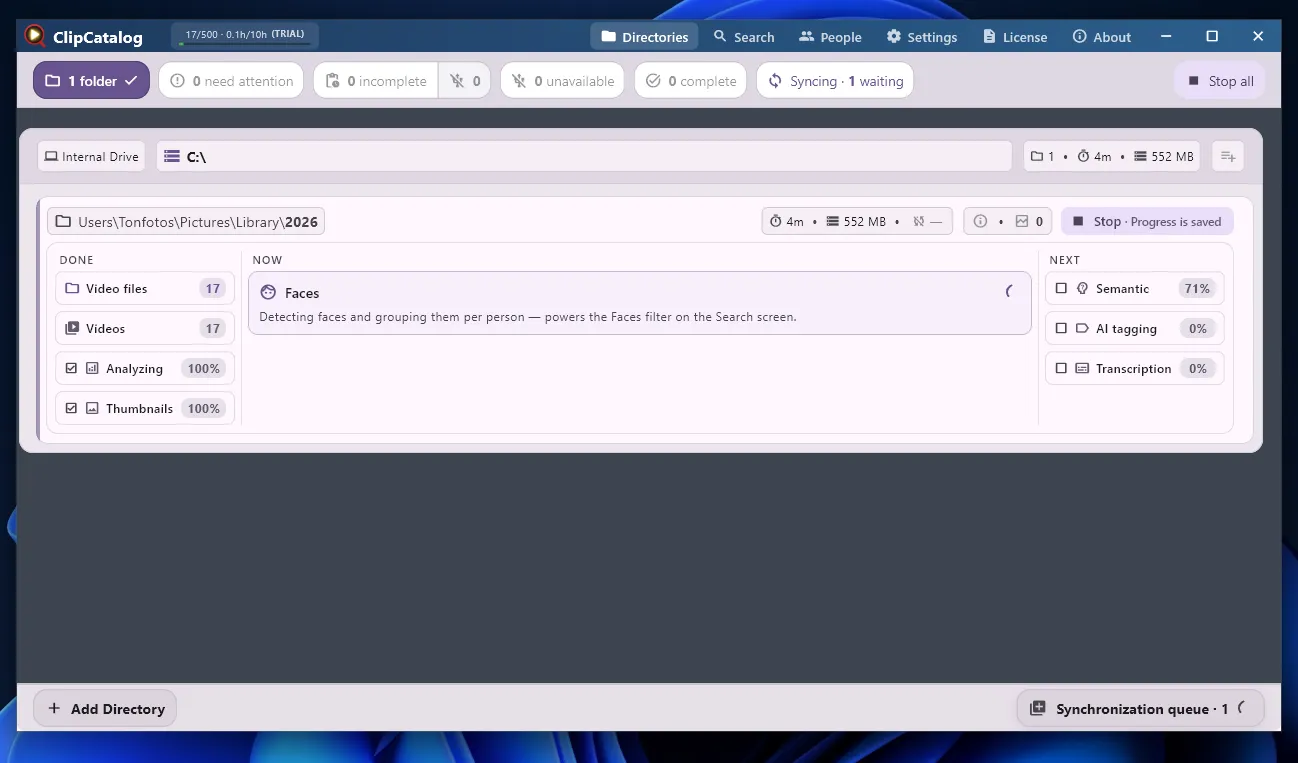
In most of the programs discussed above, video management is an additional feature. ClipCatalog, by contrast, was designed specifically to organize video archives, using modern neural-network technologies from the outset.
When folders are added, ClipCatalog starts a multi-stage indexing process. It doesn’t just create thumbnails; it analyzes videos step by step, detecting faces, performing semantic scene analysis, automatically adding tags, and transcribing speech. All algorithms run locally on your computer, without sending home videos to external cloud servers.
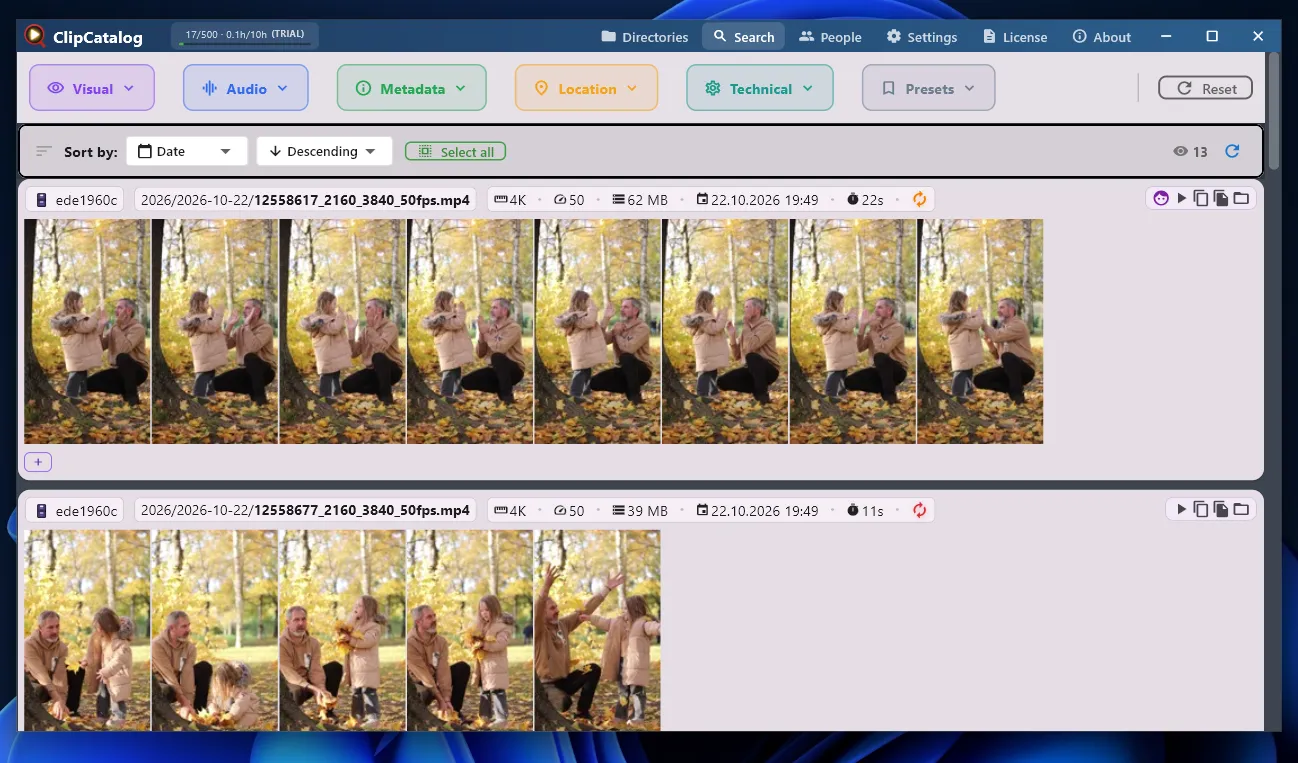
The video search and viewing screen is highly informative. Instead of a single static thumbnail, ClipCatalog generates a storyboard of several keyframes directly in the grid. This lets you assess a clip’s content and dynamics in a second without playing it. Key details are displayed beside each file, including resolution (for example, 4K), frame rate (50 fps), exact file size, and duration.
An advanced filter panel helps you find the right clip. It is divided into logical sections covering visual search, audio parameters, metadata, location, and technical characteristics.
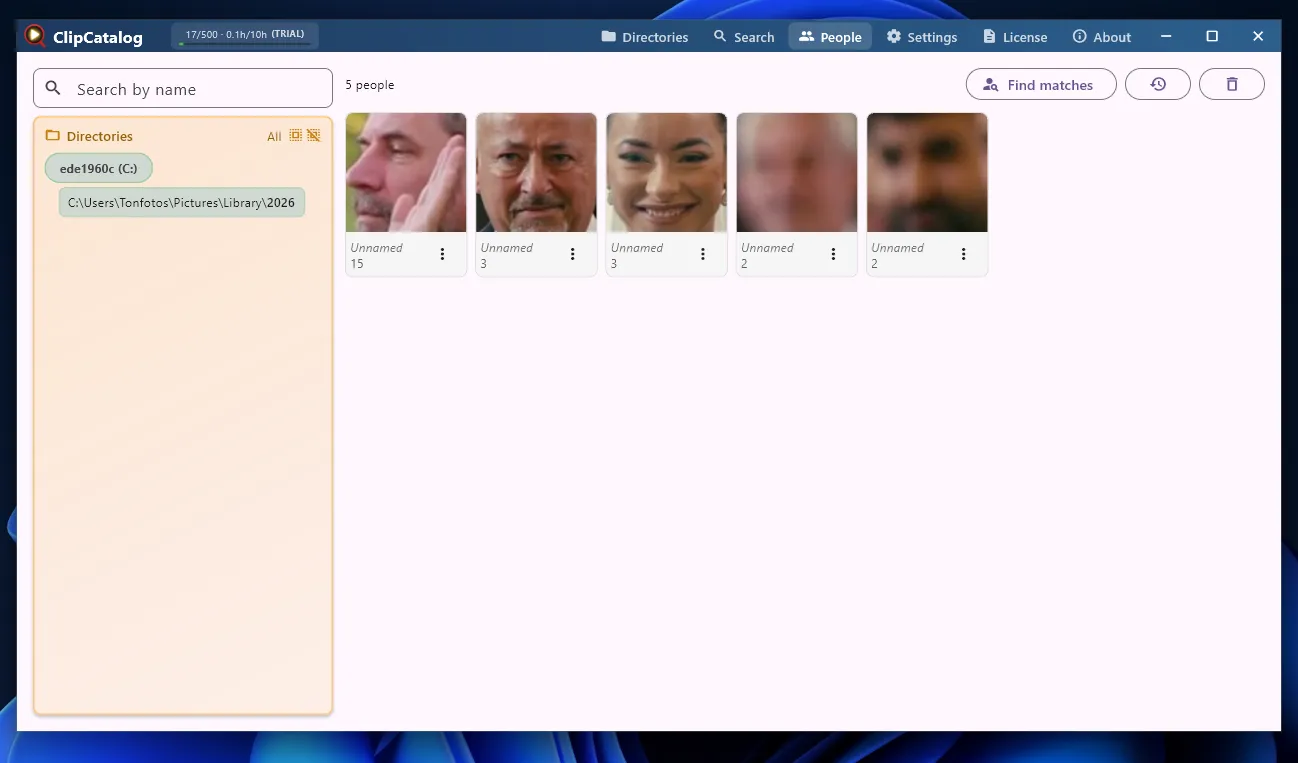
Unlike many specialized video-editing tools, ClipCatalog includes a full-fledged face recognition module. In the People section, the program collects and groups faces detected in video frames. You can assign a name to each person, then instantly filter the archive by specific people or family members.
ClipCatalog is a good fit when you need to organize a large number of recordings without manually reviewing each one. Its cataloging goes beyond thumbnail generation: it uses AI to analyze scenes, recognize faces, add tags automatically, and process speech. This creates a more comprehensive search experience. However, I would also take into account the time required for the initial analysis and the computer’s performance requirements.
Advantages of ClipCatalog as Video Management Software
Local AI indexing that includes face recognition, semantic scene search, automatic tagging, and speech transcription.
An advanced filter panel organized by data type.
Conveniently sorting videos by the people appearing in them.
Disadvantages of ClipCatalog as Video Management Software
The program works only with videos and isn’t suitable for organizing photos.
Full neural-network analysis requires powerful hardware and time.
Comparison of the Best Video Management Software
To make it easier to choose the right program, I’ve collected the key features, supported operating systems, and current prices in one comparison table.
| Software | Supported OS | Licensing model | Approximate cost | Main feature and purpose |
|---|---|---|---|---|
| Tonfotos | Windows, macOS, Linux | Free version / lifetime license | ~$59–$159 (one-time payment) | A unified family archive for photos and videos, with face recognition and a chronological timeline. |
| Adobe Bridge | Windows, macOS | Free software (Adobe account required) | Free | Professional media selection, batch renaming, and extensive XMP/IPTC metadata tools. |
| NeoFinder (abeMeda for Windows) | macOS (NeoFinder); Windows (abeMeda) | Lifetime license (trial with limitations) | ~$29–$39 per platform (one-time payment) | Catalogs files on external HDDs and NAS devices, with access to thumbnails even when drives are disconnected. |
| Video Hub App | Windows, macOS, Linux | One-time payment | $10 | Turns a local video folder into an interactive, Netflix-style media library with dynamic previews. |
| Kyno | Windows, macOS | Lifetime license | ~$159 (Standard) / ~$349 (Premium) | Selects footage for video editing, adds timeline markers, and converts files in batches. |
| Peakto | macOS | Subscription | From $18/month | AI search by scene meaning, dialogue text, and visually similar frames without manual tagging. |
| ClipCatalog | Windows, macOS | Lifetime license / demo version | $99 | In-depth local AI analysis: automatic tagging, face recognition, and speech transcription for video files. |
Which Video Manager Should You Choose?
After comparing the options, it becomes clear that you should choose software based not on the number of features listed in its description, but on how you prefer to work with your archive.
If you want to organize photos alongside videos and search for recordings by people and events, Tonfotos is worth considering. Adobe Bridge is a good option for detailed sorting, metadata management, and batch renaming. If your archive is spread across several drives and you need to find files without moving them, consider NeoFinder. Video Hub App is suitable for those who want a visual media library with convenient playback, while Kyno is aimed at more professional video workflows.
Peakto and ClipCatalog take a different approach, offering intelligent searches based on video content. These tools are especially interesting when folders, dates, and tags are no longer enough and you want to find videos by scenes, people, or spoken words.
Frequently Asked Questions (FAQ)
Is it safe to use AI for face recognition in personal videos?
Yes, if the cataloging software processes media files locally on your computer, as Tonfotos, Peakto, and ClipCatalog do. In this case, the neural networks work without an internet connection, and your personal footage and data are not sent to third-party servers.
Why won’t some 4K videos recorded on a smartphone open on a PC?
Modern phones record video using high-efficiency codecs such as HEVC/H.265. If the required decoders aren’t installed in the operating system, the standard player may not be able to play the file. Specialized video managers include built-in codecs and can open these clips without problems.
Should photos and videos be stored in separate folders on a drive?
For convenience, it makes more sense to group media by event and date—for example, “2025_06_Vacation”—and keep photos and videos together. Modern managers can create a unified chronological timeline, letting you view the entire story of a trip or celebration in one place.
How can I quickly find duplicate videos and free up hard drive space?
You can use built-in duplicate-finding tools, such as the one in Tonfotos, or dedicated utilities. They compare files not only by name but also by size, checksums, and content, helping you remove unnecessary copies safely.